Set up SAML with Azure
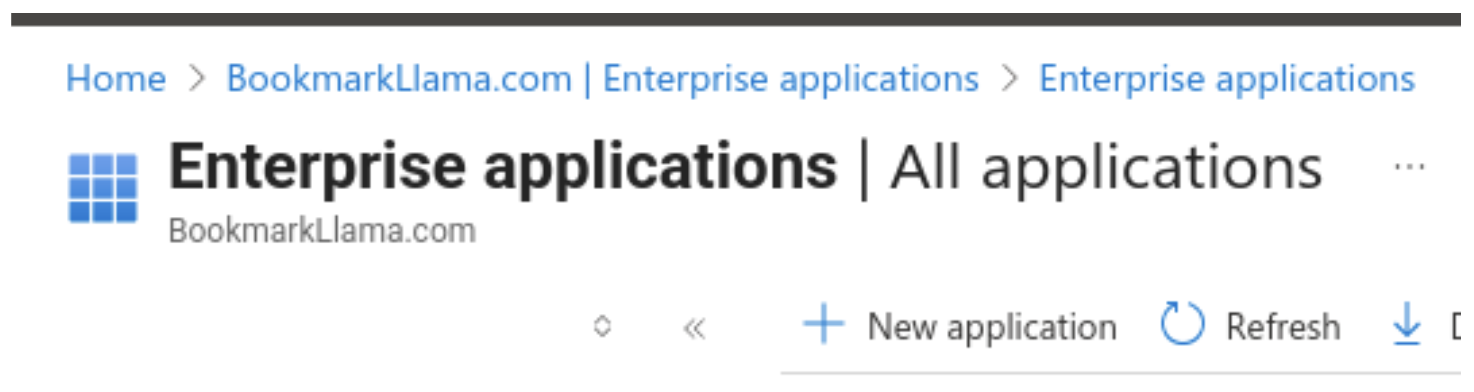
- In the Azure portal, go to Enterprise applications and select New application to create a new Enterprise Application.
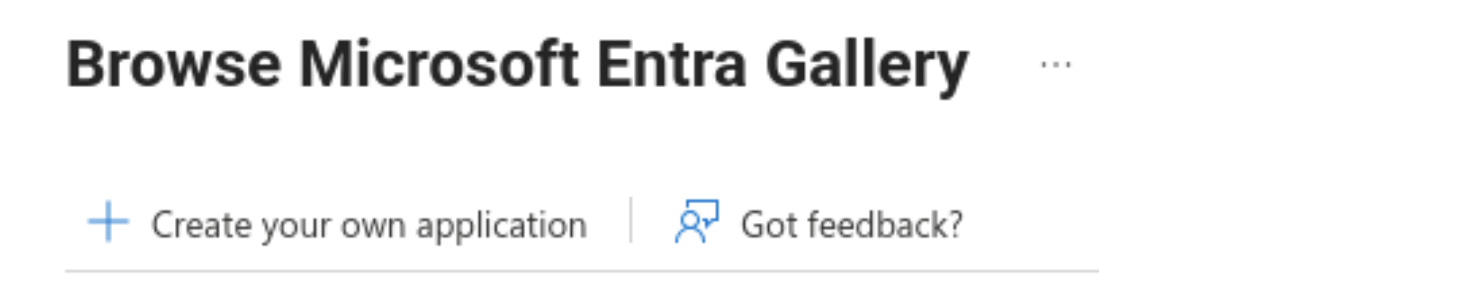
- In the Browse Microsoft Entra Gallery window, click Create your own application.
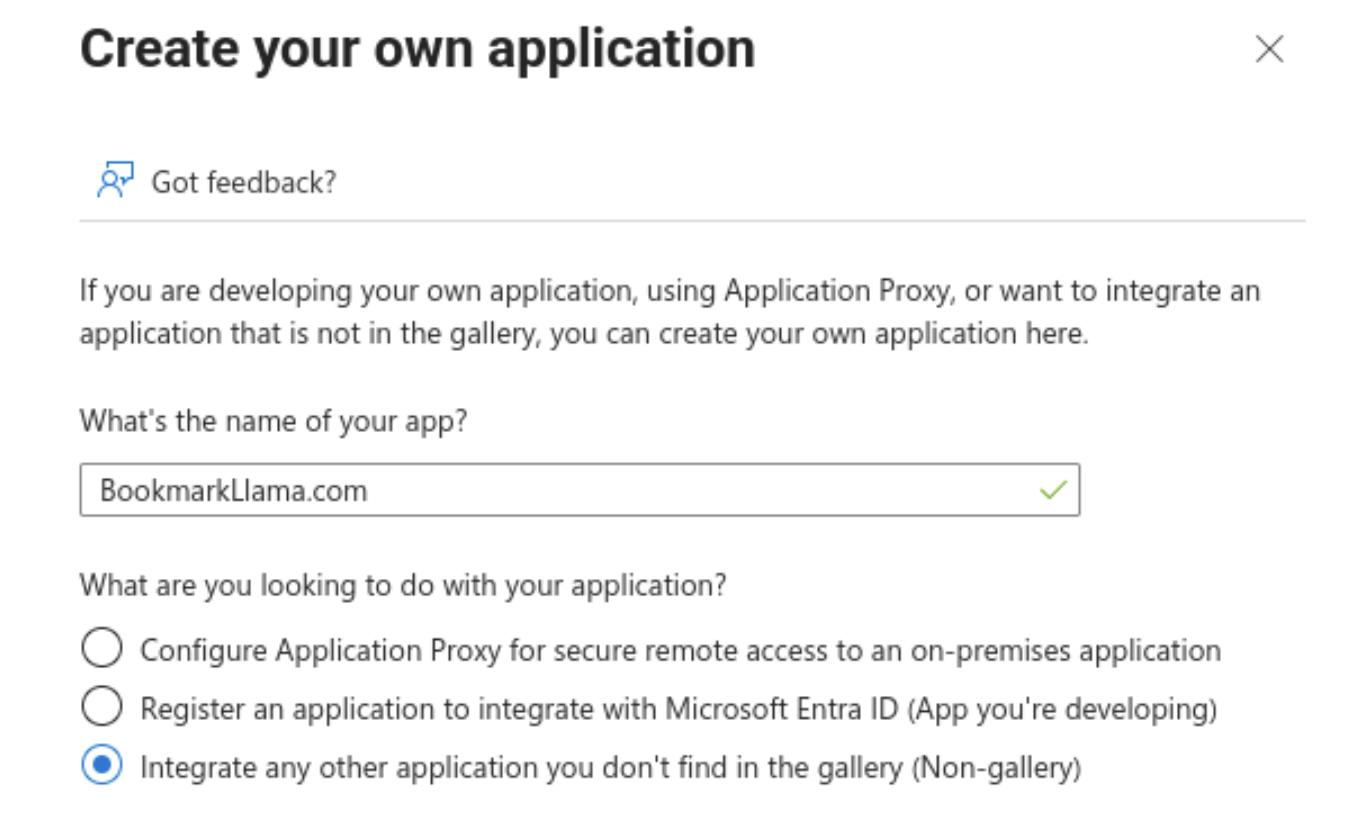
- In the Create your own application window, enter BookmarkLlama.com as the application name and select Integrate any other application you don’t find in the gallery (Non-gallery). The screenshot below shows the exact configuration.
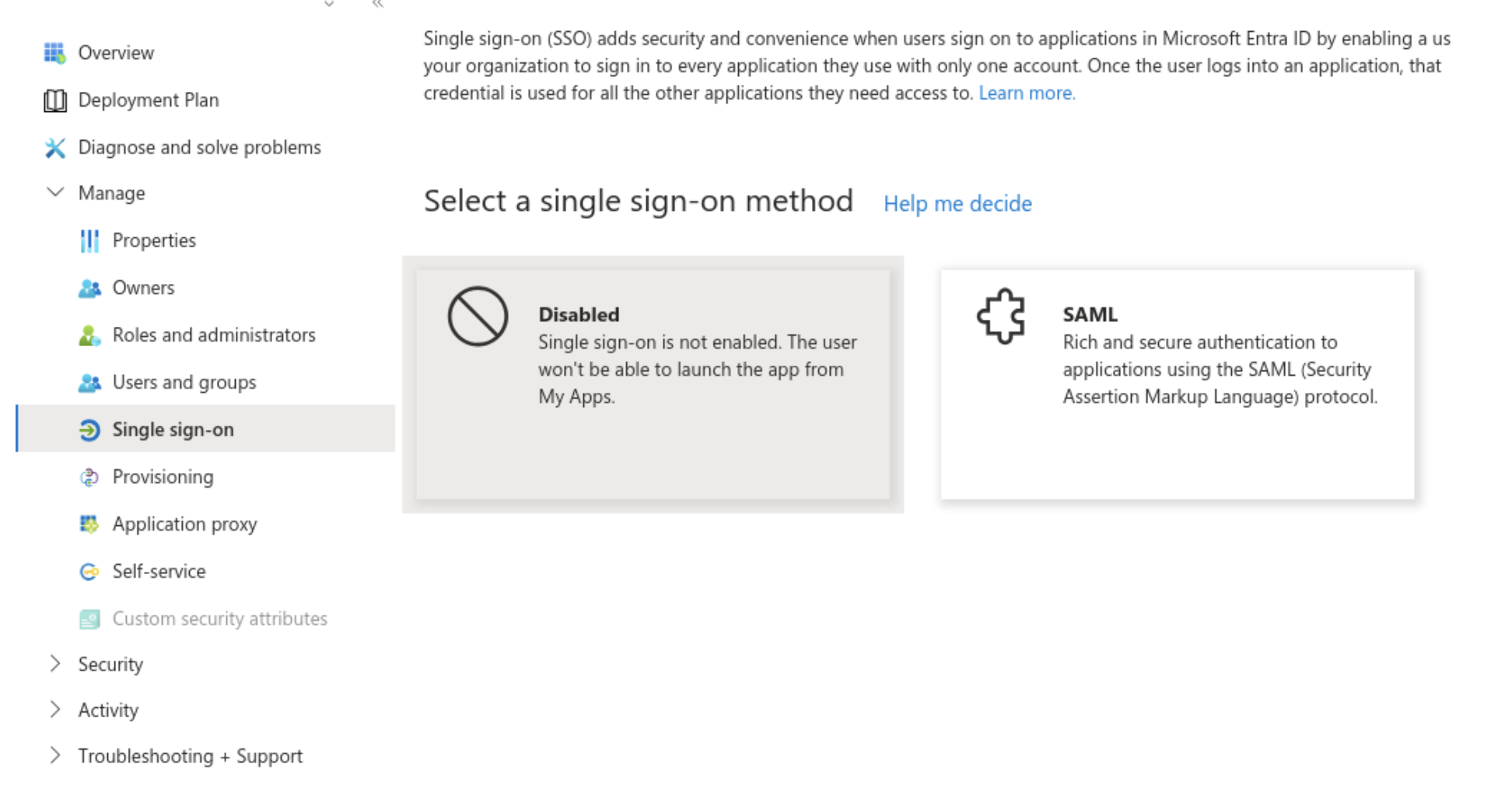
- In the Single sign-on section, choose SAML as the sign-on method.
-
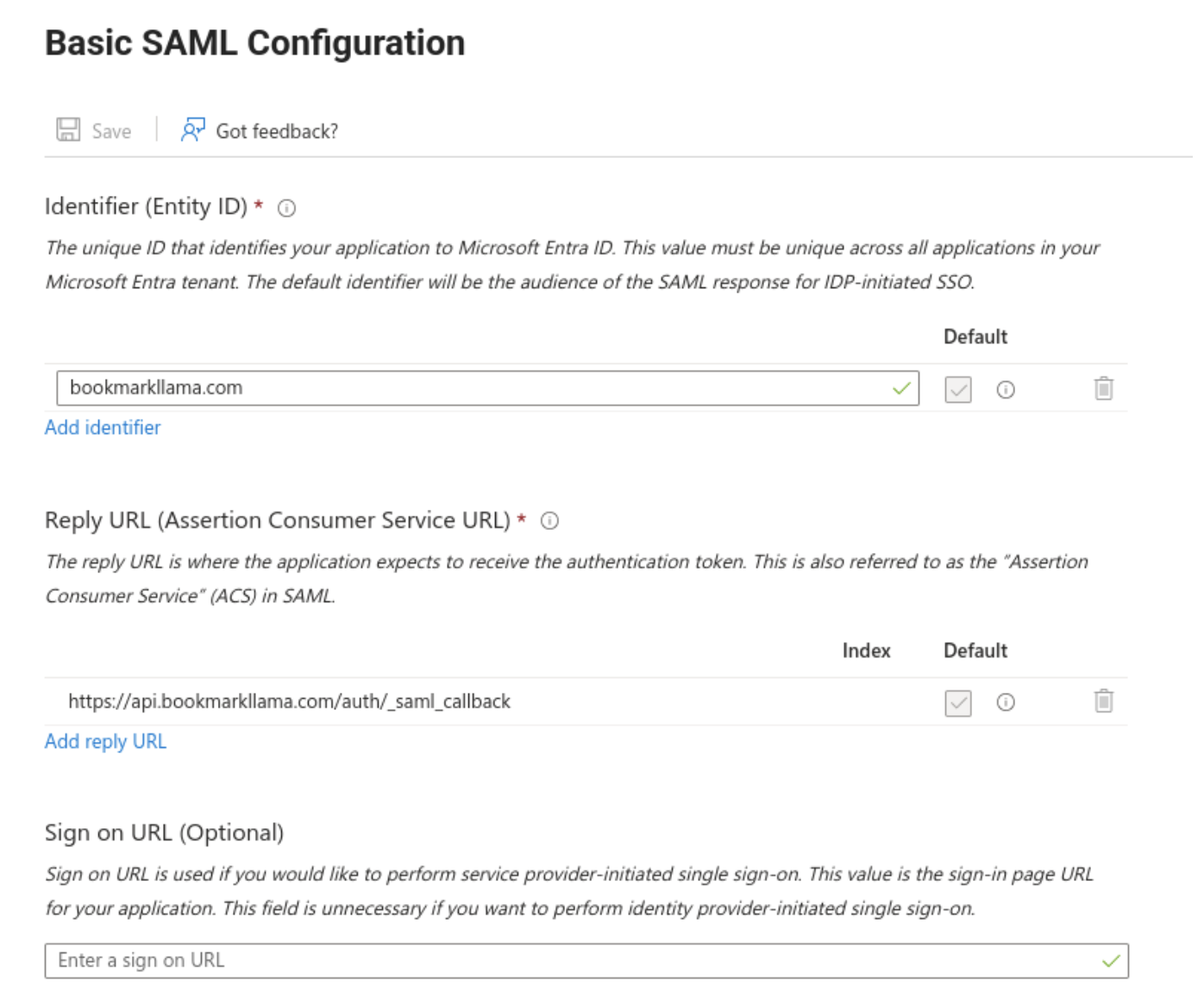
In Basic SAML Configuration, set the following:
- Identifier (Entity ID): bookmarkllama.com
- Reply URL (Assertion Consumer Service URL): https://api.bookmarkllama.com/auth/_saml_callback
-
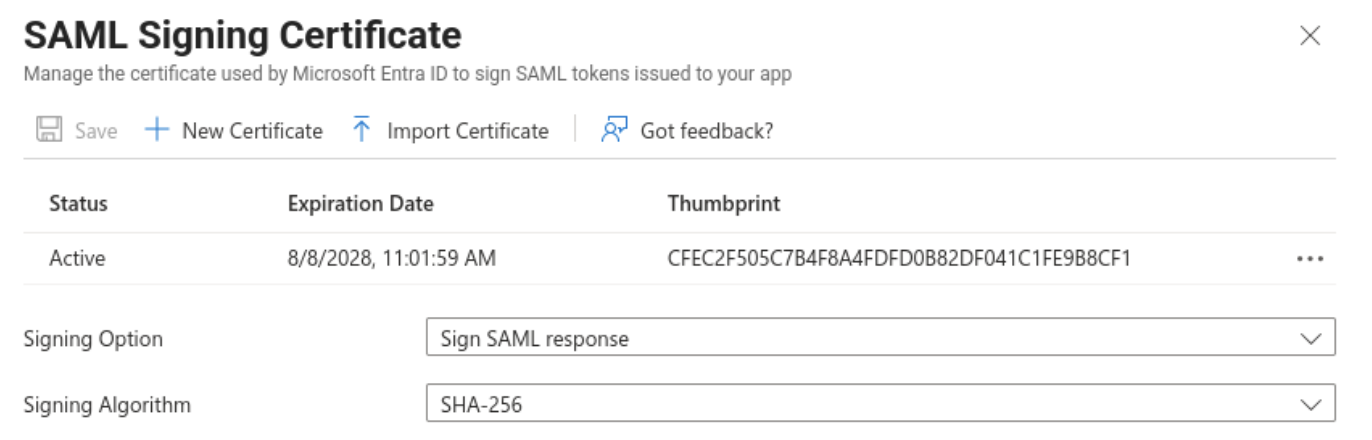
In SAML Signing Certificate, set the following:
- Signing Option: Sign SAML response
- Signing Algorithm: SHA-256
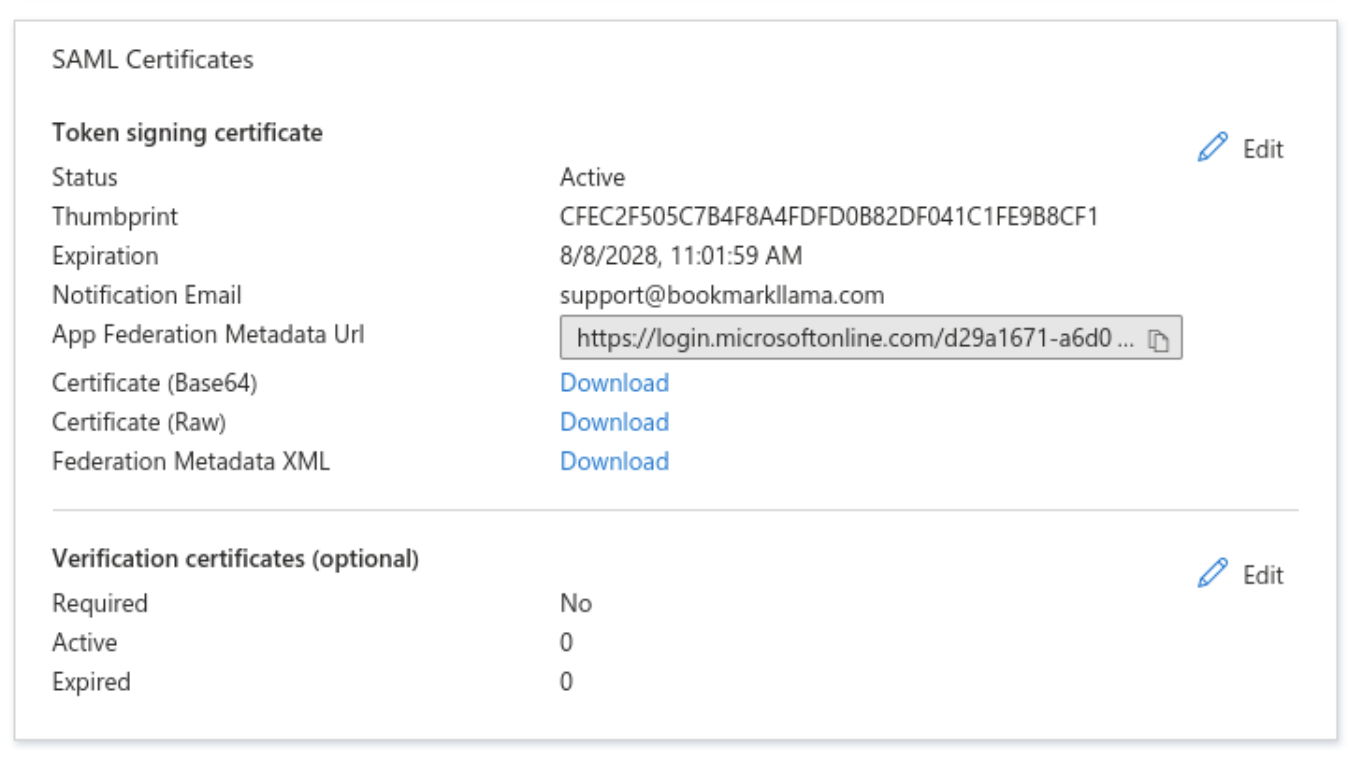
- Copy the App Federation Metadata URL. You will need this for configuring SAML in the Bookmark Llama settings.