
Install the browser extension
What is the browser extension?
The Bookmark Llama browser extension is a small add-on that connects your browser’s native bookmarks with your team. It runs quietly in the background, syncing shared folders directly to your bookmark bar.
Why do I need to install it?
The extension is required to use Bookmark Llama. Without it, shared folders cannot sync to your browser. The extension:
- Enables sharing: Allows you to select bookmark folders from your browser’s bookmarks bar, and share them with your team.
- Syncs to your bookmark bar: Shared folders appear directly in your browser’s native bookmarks, not in a separate app.
- Keeps everything in sync: Any changes you or your team make are automatically updated across all members.
You and your team members each need to install the extension on every browser where you want to access shared folders.
Supported browsers
Bookmark Llama is available for all major browsers:
Install the extension
- Click the link for your browser above to open the extension store.
- Add to browser: Click “Add to Chrome”, “Get”, or “Add to Firefox” depending on your browser.
- Confirm permissions: Accept the permissions prompt to complete the installation.
- Pin the extension (recommended): Click the puzzle/extensions icon in your browser toolbar and pin Bookmark Llama for easy access. Clicking the extension icon will open the Bookmark Llama dashboard.
Sign in
After installing:
-
Click the Bookmark Llama icon in your browser toolbar.
-
Sign in with your email, Google, or Microsoft account.
-
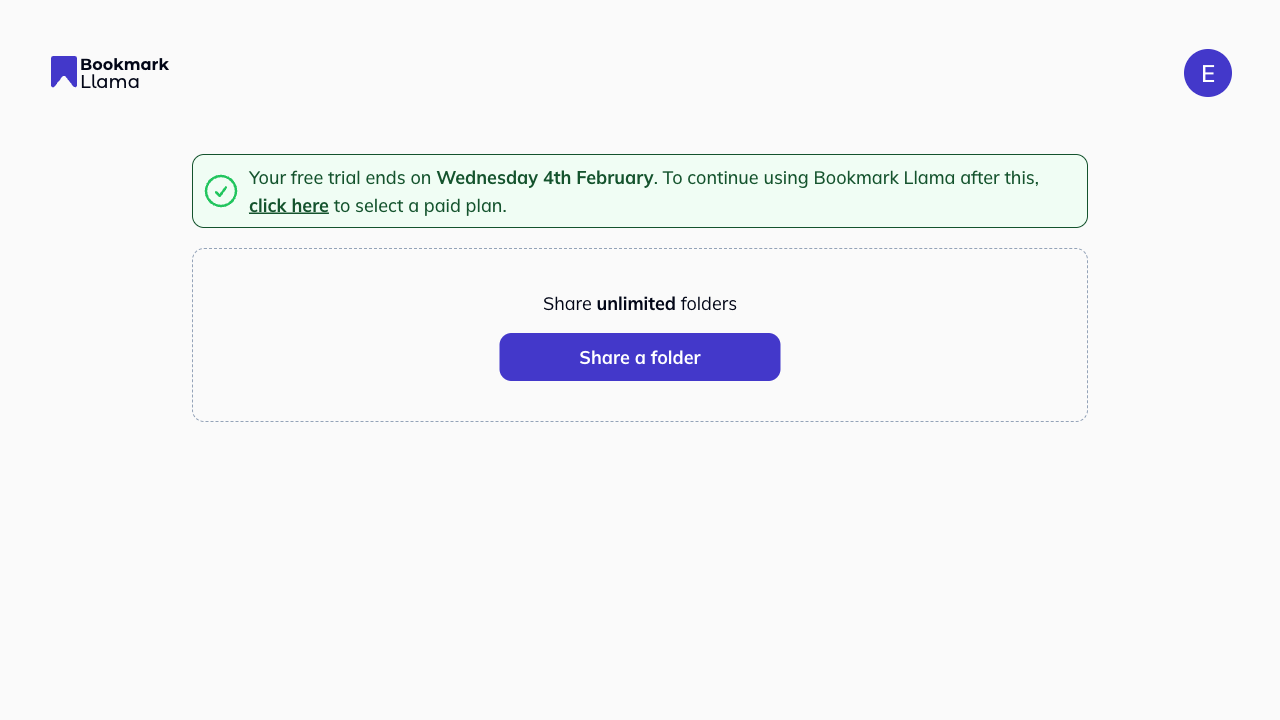
If you’ve been invited to an organization, you’ll join during signup. If asked, verify your email to complete access. If you’ve been added to any shared folders, they will automatically be added to your bookmarks bar.
-
If you haven’t been invited to an organization and want to create one, check out our quick start guide.
Troubleshooting
Not seeing shared folders appear that you’ve been invited to?
- Check that you’re signed into the same email address invited by your team.
- Check that the extension is enabled in your browser’s extension settings.
- Check that the folders are on the bookmarks bar. Shared folders are added to the end of your bookmarks bar, so they may be hidden if you have many folders. Go to app.bookmarkllama.com, find your folder, and click the “Open folder” icon to locate it in your bookmarks bar.
Next steps
Once the extension is installed, you’re ready to share a folder with your team.