
Folder permissions
What are folder permissions?
Folder permissions let you control what each team member can do within a shared folder and user management for the folder. You can assign different access levels to individuals or groups to keep your bookmarks secure and organized.
How to set folder permissions
- Go to your dashboard at app.bookmarkllama.com.
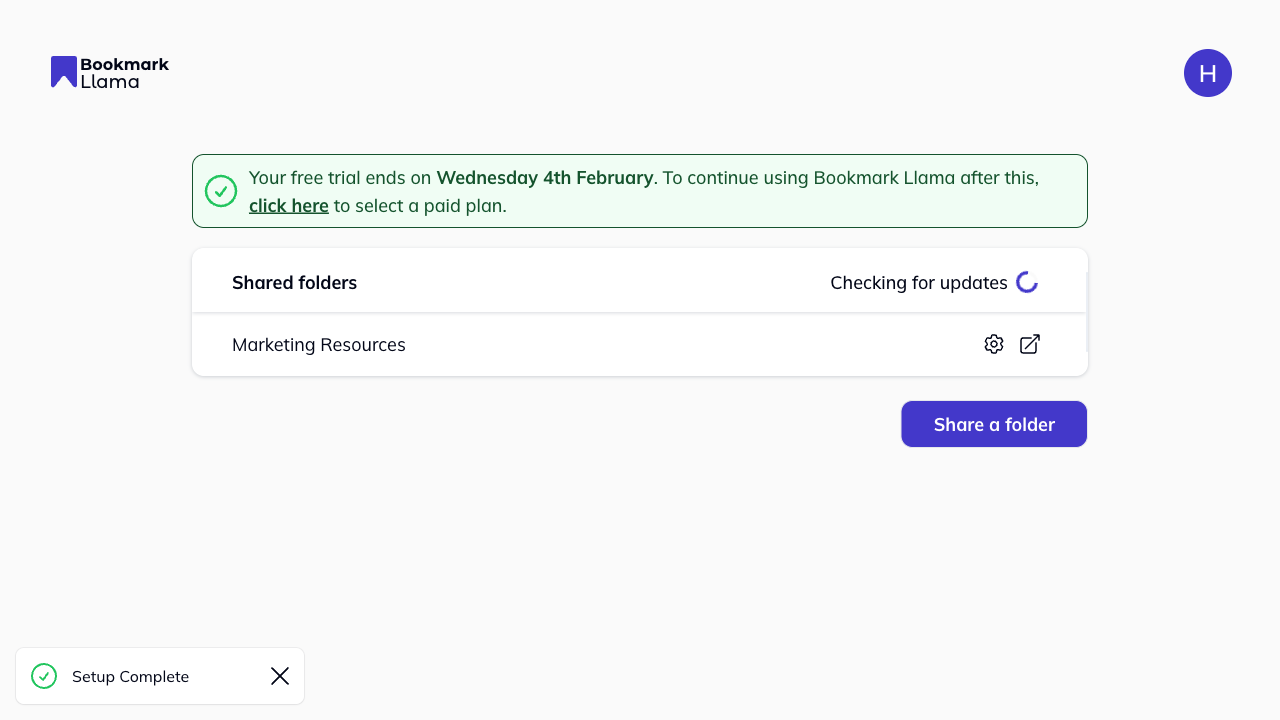
- Find the shared folder you want to manage.
- Click the cog icon next to the folder name to open “Settings”.
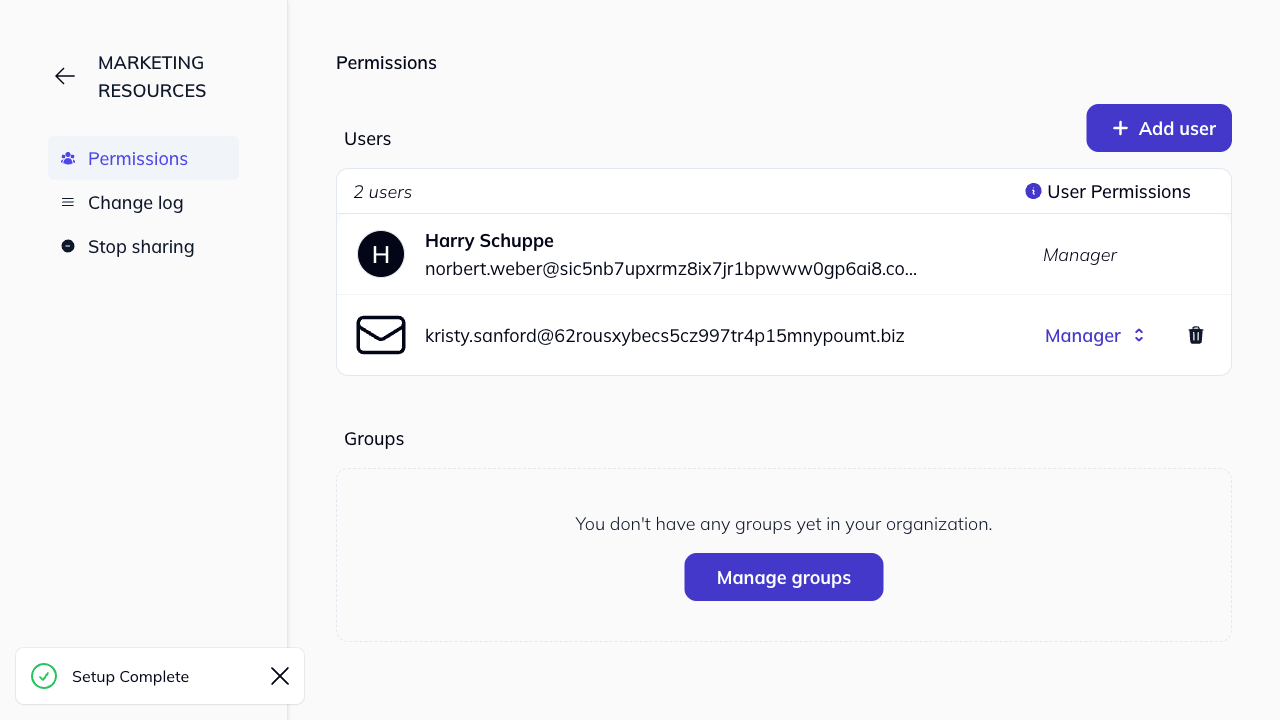
- The Permissions tab opens by default, showing all users and groups assigned to the folder.
Permission levels
When you create a shared folder, you are automatically assigned as a Manager. You can then assign one of three permission levels to other users:
- Manager: Full control over the folder, including managing other users’ access.
- Editor: Can add, edit, and delete bookmarks, but cannot manage users.
- Viewer: Read-only access to view bookmarks.
Change a user’s permission
- On the Permissions tab, find the user or group you want to modify.
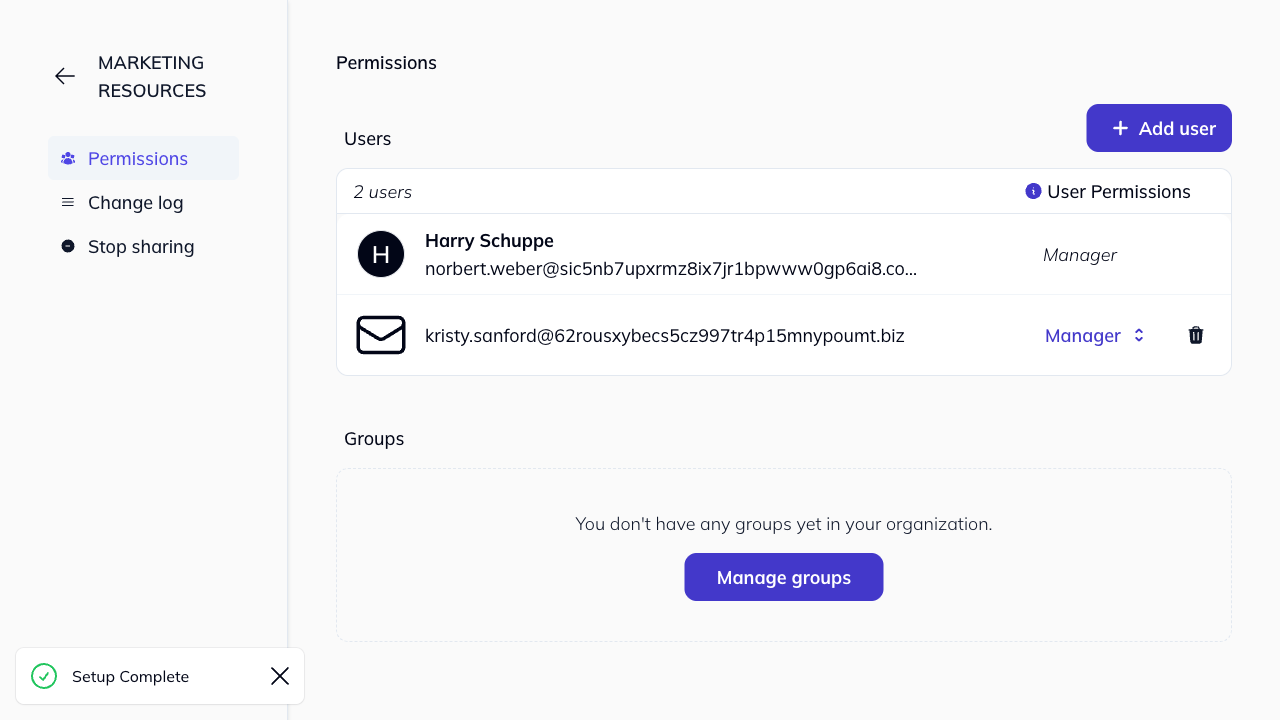
- Click the dropdown next to their name.
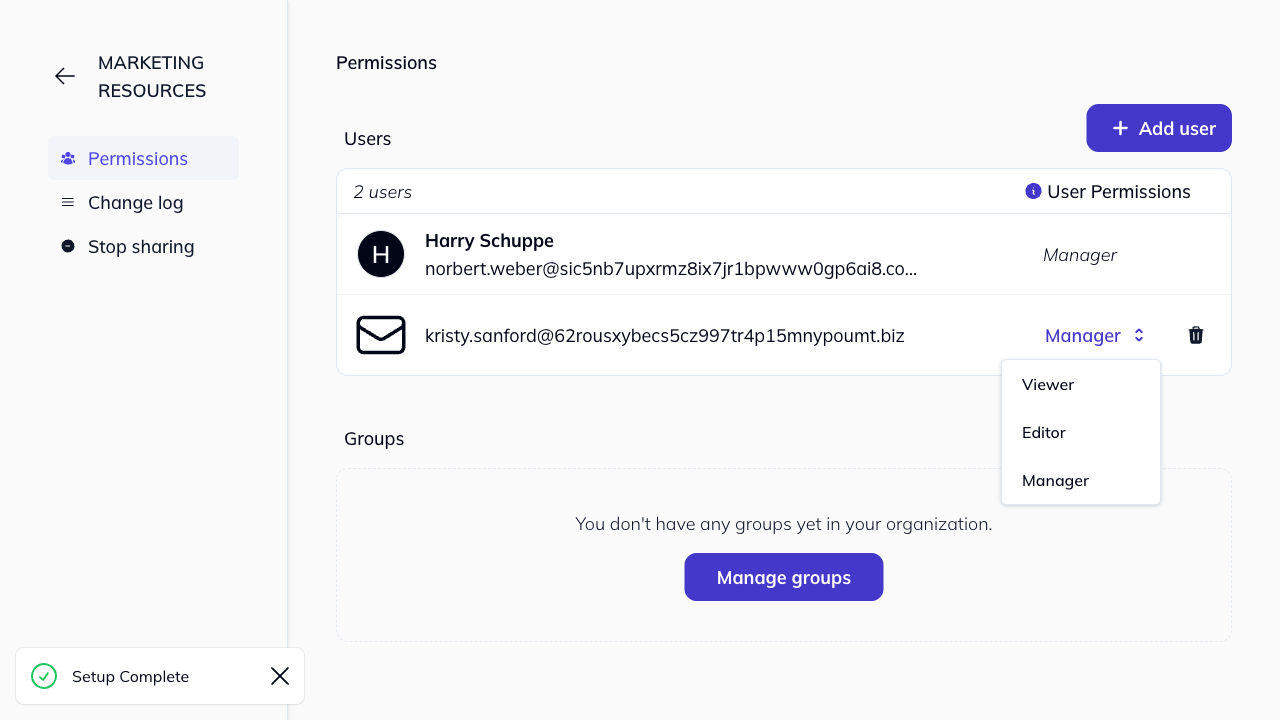
- Select the new permission level.
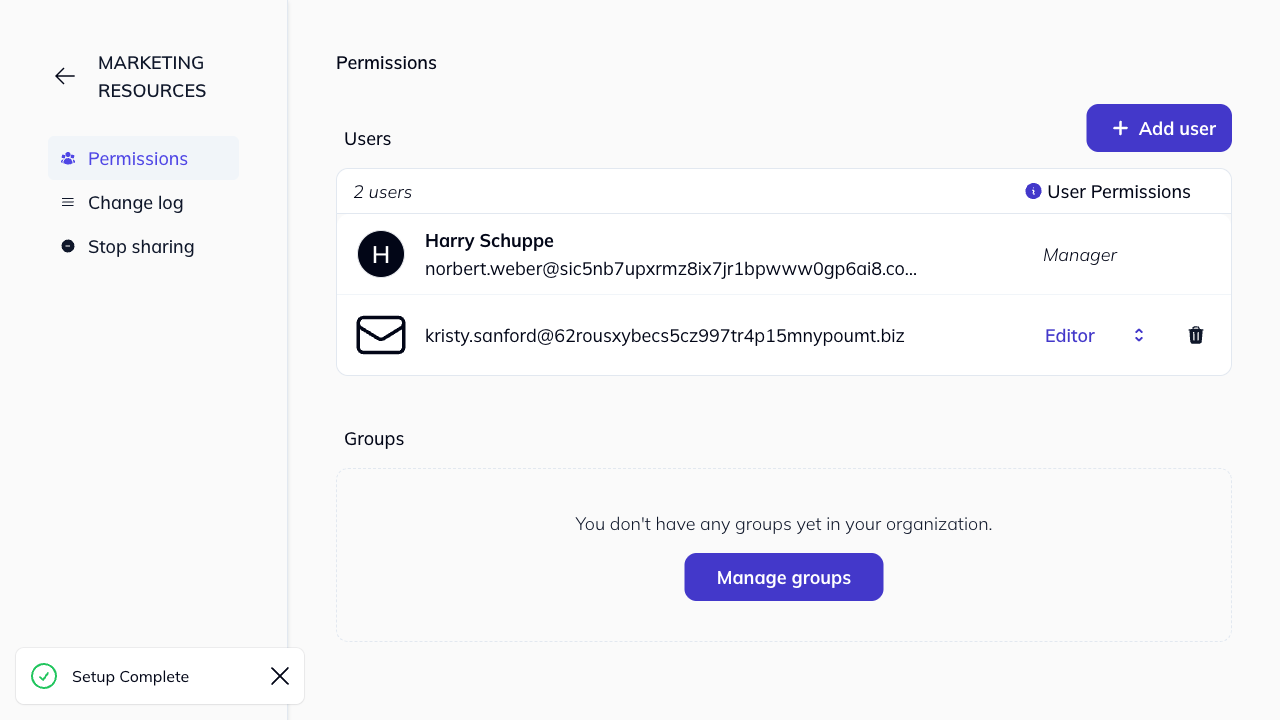
Changes are applied immediately.
Permissions comparison
| Action | Manager | Editor | Viewer |
|---|---|---|---|
| View assigned users/groups | ✓ | ✓ | ✓ |
| Assign users/groups | ✓ | ✗ | ✗ |
| Remove users/groups | ✓ | ✗ | ✗ |
| Update bookmarks | ✓ | ✓ | ✗ |
| Stop sharing | ✓ | ✗ | ✗ |
| Restore from backup | ✓ | ✓ | ✗ |
Using groups
Instead of assigning permissions to individual users, you can create groups and assign permissions to the entire group at once. This is useful for teams where multiple people need the same access level. Learn more about managing groups.