
Decryption for users
What is decryption?
If your organization has enabled encryption, you’ll need to enter the encryption password to access shared folders. This password was set by your organization admin when encryption was enabled.
For a detailed technical overview of how encryption works, see our encryption technical document.
When will I be prompted to decrypt?
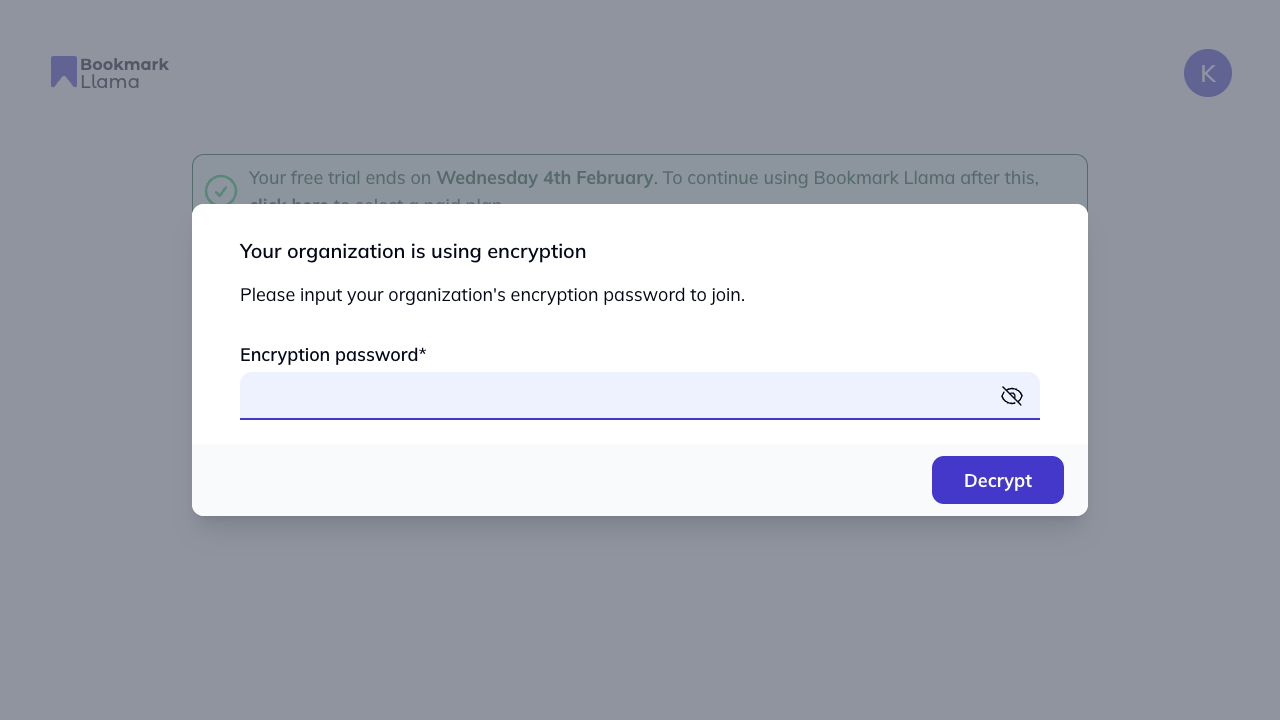
When you log into the Bookmark Llama app, a modal will pop up asking you to enter your organization’s encryption password. You will not be able to access any shared bookmarks until you enter the correct password.
You’ll be prompted to enter the encryption password when:
- You join an organization that has encryption enabled.
- Your organization enables encryption after you’ve already joined.
- You sign in on a new device or browser.
- You clear your browser data.
How to decrypt your organization
-
Sign in to app.bookmarkllama.com.
-
A modal will appear asking for your encryption password.
-
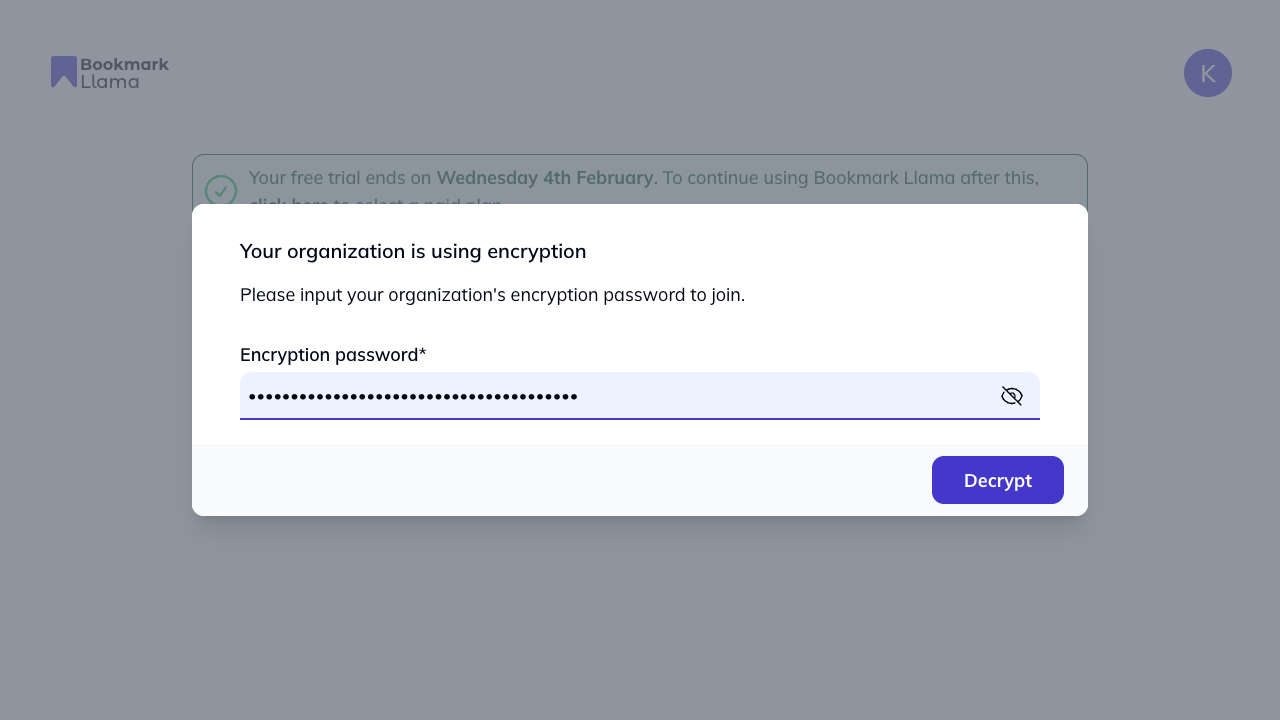
Enter the encryption password provided by your organization admin.
-
Click to confirm.
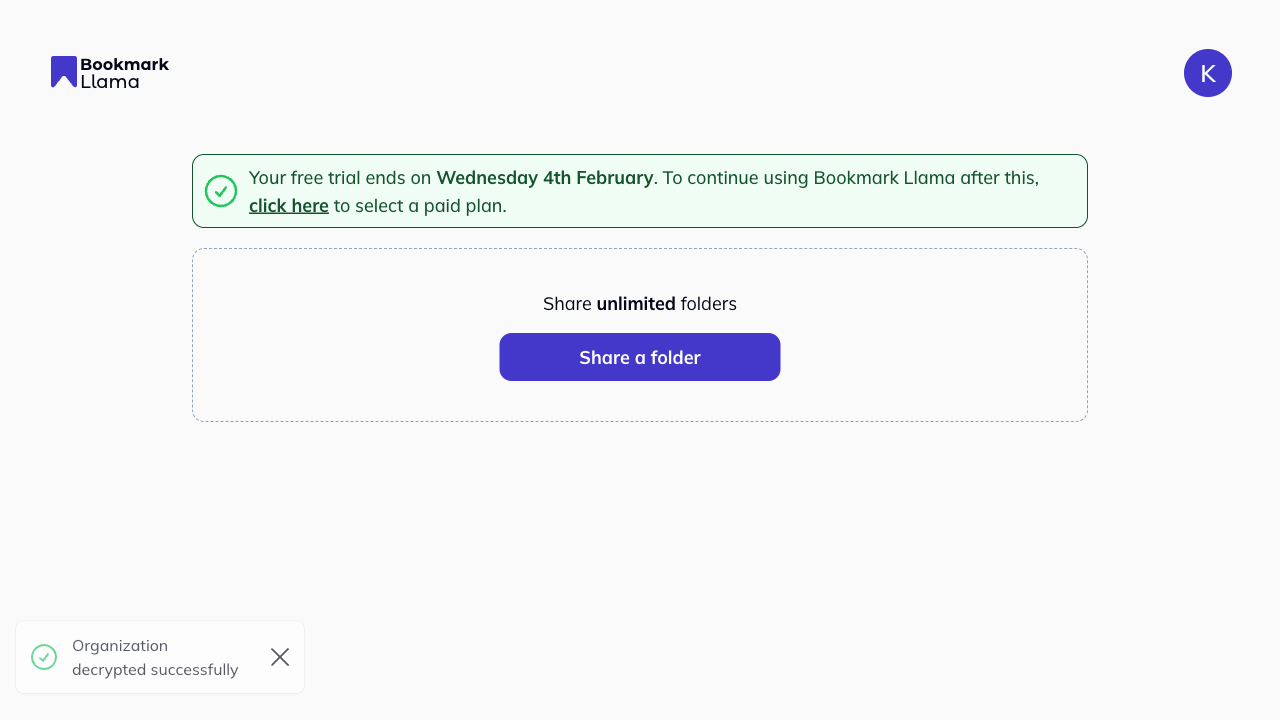
Once decrypted, any shared folders you have access to will appear in your bookmarks bar (via the browser extension) and will continue to sync with your team.
Important: Keep your encryption password safe. Bookmark Llama cannot retrieve or reset this password. If you lose it, contact your organization admin.
Using multiple devices or browsers
You’ll need to enter the encryption password on each device or browser you use. The password is used to derive encryption keys that are stored locally in your browser, so each new device/browser requires the password to be entered once.
- Sign in on the new device/browser.
- Enter the encryption password when prompted.
- Your shared folders will sync to your bookmarks bar.
Need help?
If you’re having trouble with decryption, contact your organization admin or reach out to Bookmark Llama support.