
Restore bookmarks
What is restore bookmarks?
Bookmark Llama keeps a history of all changes made to your shared folders. If bookmarks are accidentally deleted, moved, or modified, you can restore the folder to a previous version using the “Change Log”.
How to access the Change Log
-
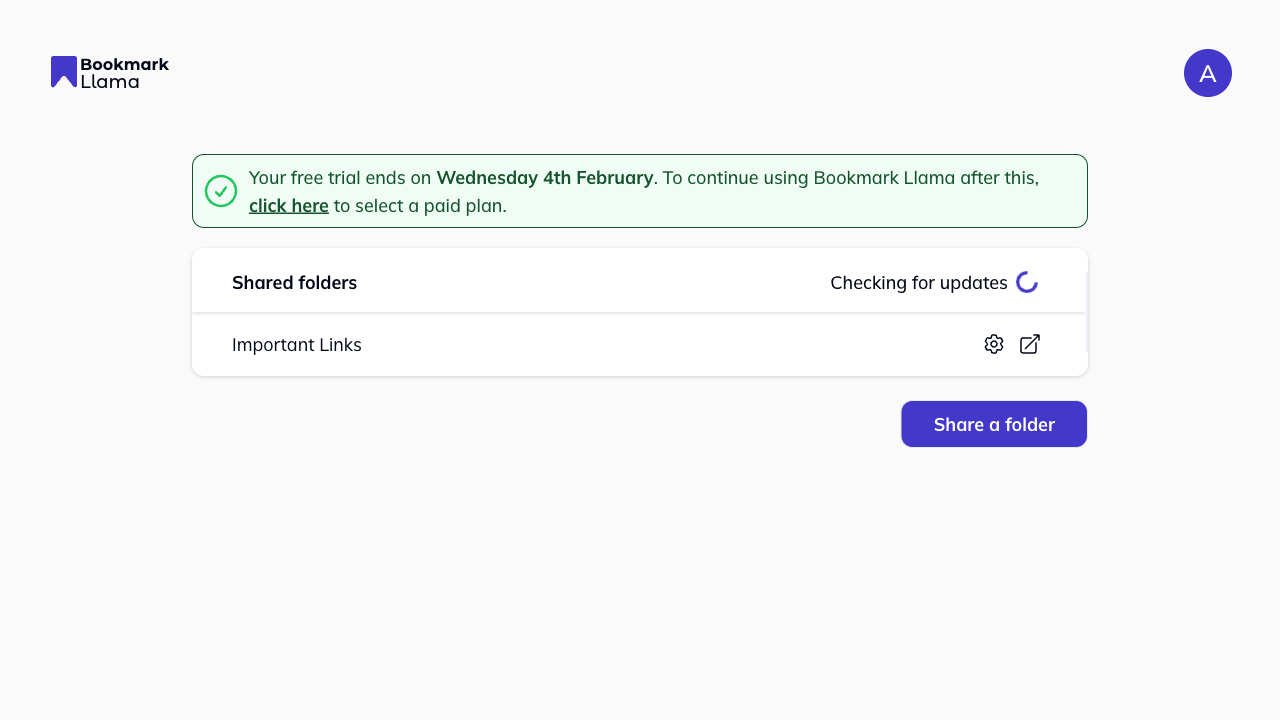
Go to your dashboard at app.bookmarkllama.com.
-
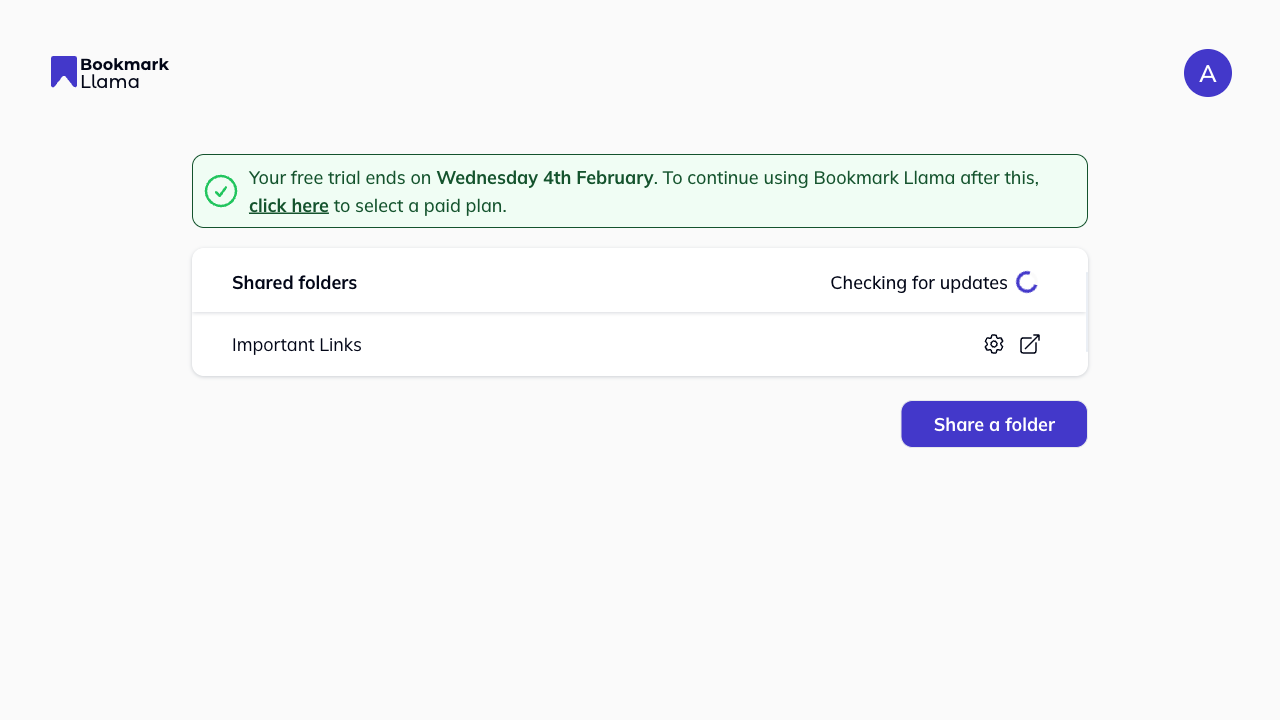
Find the shared folder you want to view. Click the cog icon next to the folder name to open “Settings” of that folder.
-
Click the Change Log tab in the sidebar.
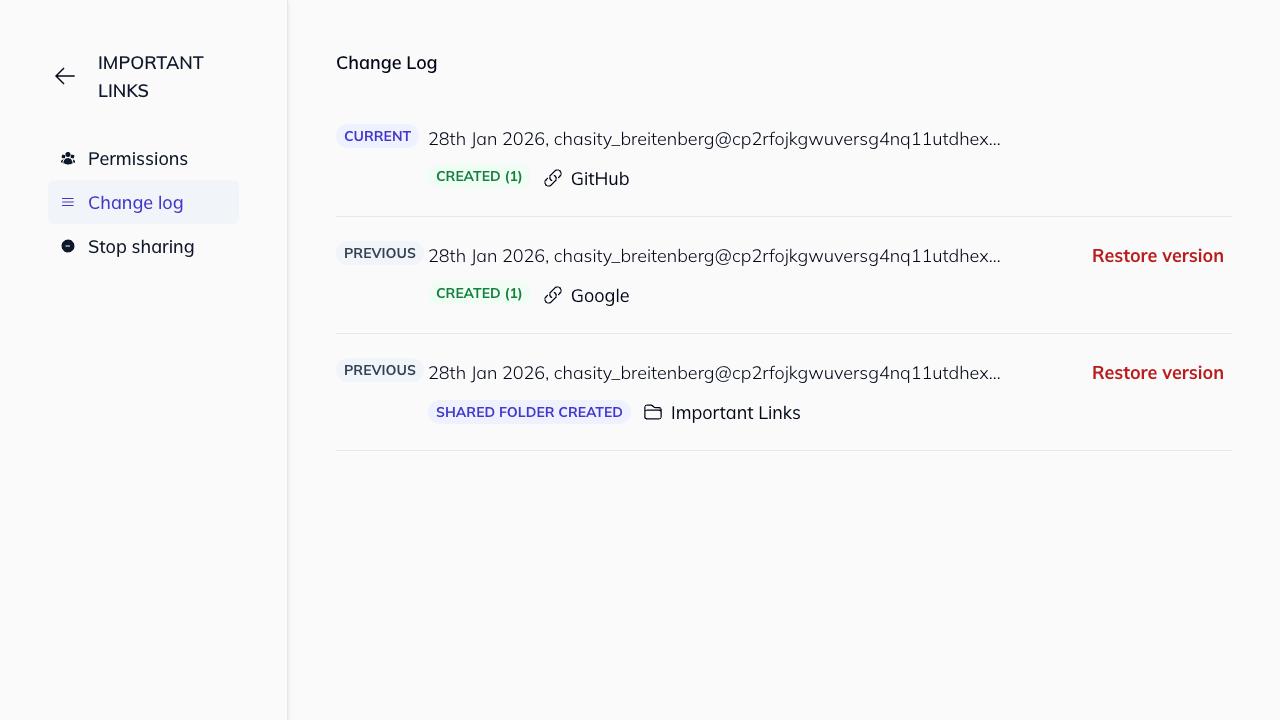
The Change Log is a page where you can see all the changes made to the shared folder. It shows:
- Date and time of each change
- Who made the change (email address)
- What changed: Created, Deleted, or Moved bookmarks
- Which bookmarks were affected
How to restore bookmarks
Once you’re on the Change Log page:
-
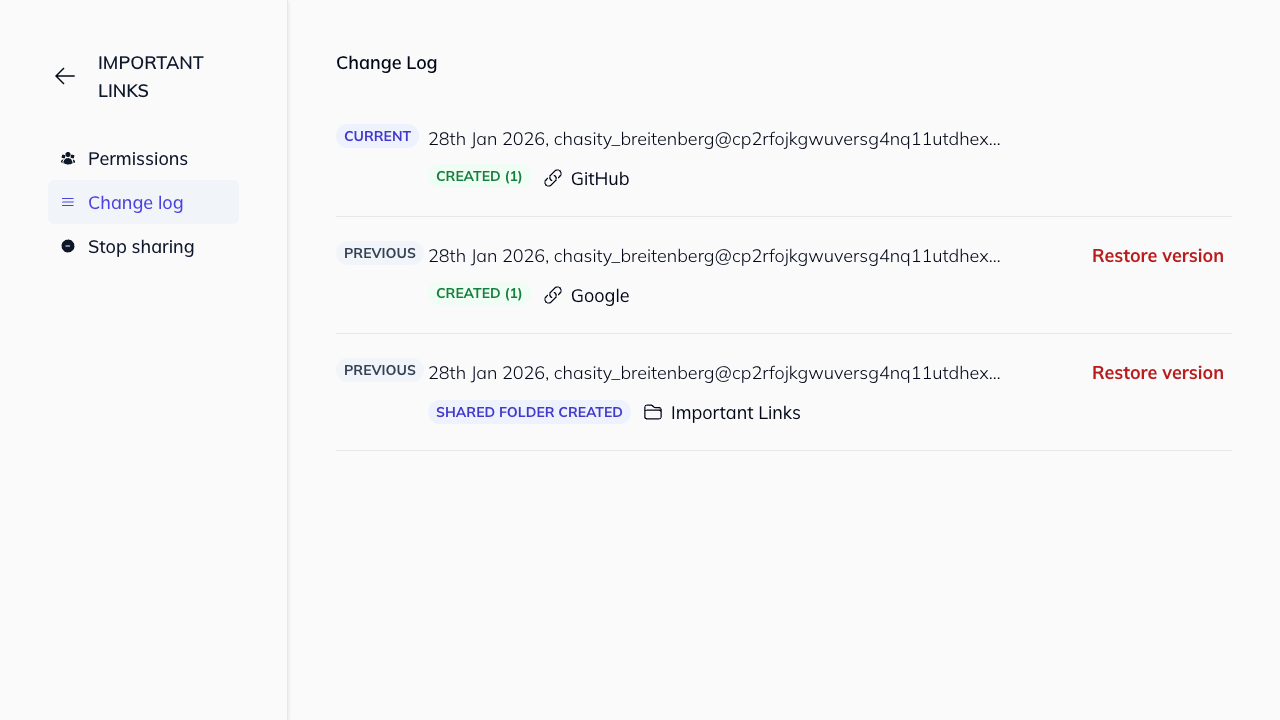
Browse the history to find the version you want to restore. Each entry shows:
- CURRENT: The latest state of the folder
- PREVIOUS: Earlier versions with their changes listed
-
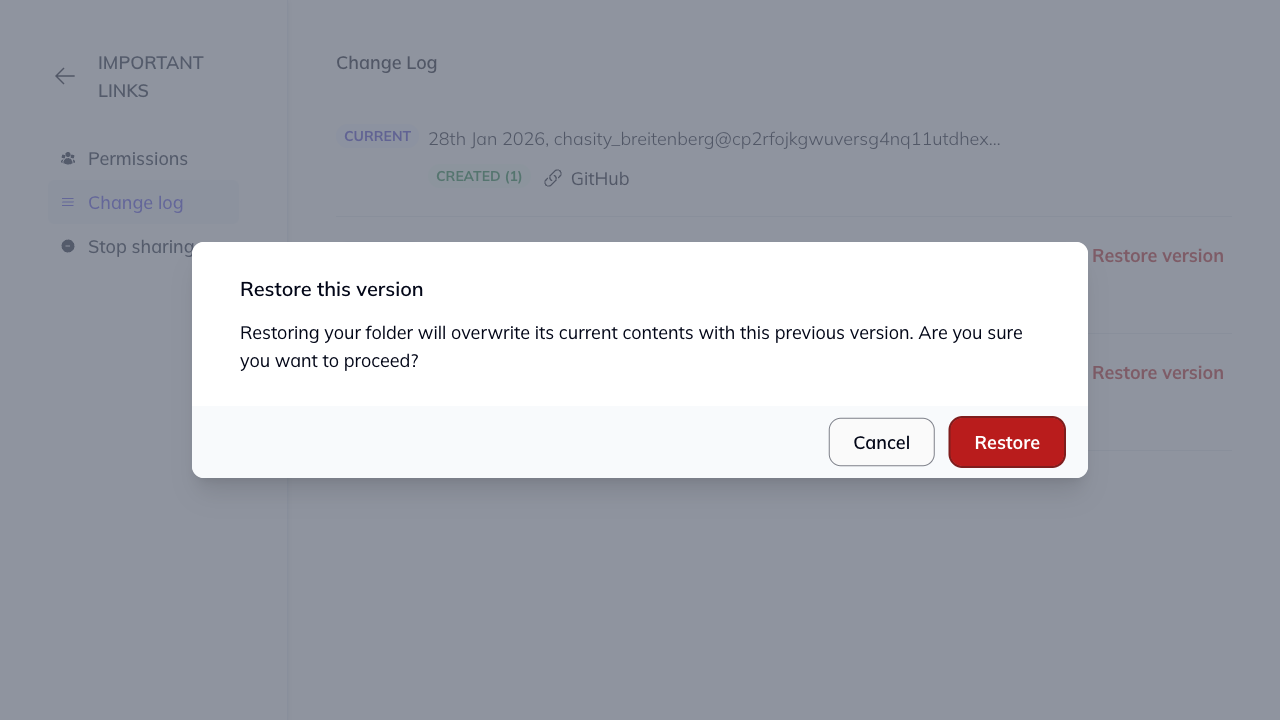
Click Restore version next to the version you want to restore.
-
A confirmation dialog will appear: “Restoring your folder will overwrite its current contents with this previous version. Are you sure you want to proceed?”
-
Click Restore to confirm, or Cancel to go back.
Once restored, the folder will revert to that version and sync to all users with access.
Who can restore bookmarks?
Only users with Manager or Editor permissions can restore a folder to a previous version. Viewers cannot access the restore feature. See folder permissions for more details.