
Share a folder
Extension required: You must have the Bookmark Llama browser extension installed to share a folder. If you haven’t installed it yet, follow our installation guide first.
What is a shared folder?
A shared folder is a bookmark folder that syncs automatically between team members. When you share a folder with Bookmark Llama:
- It lives in your browser’s bookmark bar; shared folders appear alongside your regular bookmarks, not in a separate app.
- Changes sync instantly; when anyone adds, edits, or removes a bookmark, the update appears in everyone’s browser within seconds.
- Permissions control access; you decide who can view, edit, or manage each folder.
- Everyone stays organized; your team always has access to the same up-to-date resources without manually sharing links.
How to share a folder
- Install the extension: You need the extension installed to share a folder. See our installation guide for instructions.
- Sign up for Bookmark Llama if you haven’t already. Go to app.bookmarkllama.com. The shared folder screen will show as soon as you complete onboarding. Check out our quick start guide for more information.
- If you’ve already signed up, go to your dashboard at app.bookmarkllama.com, and click Share folder to start the setup wizard.
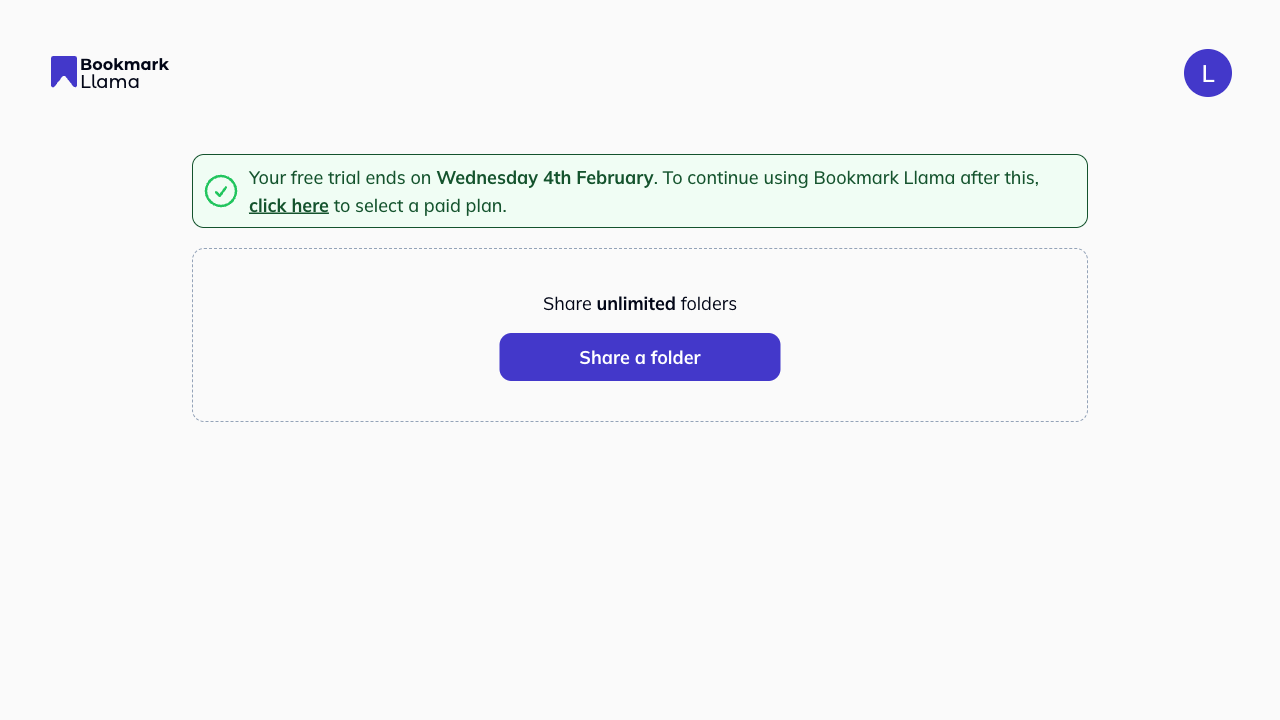
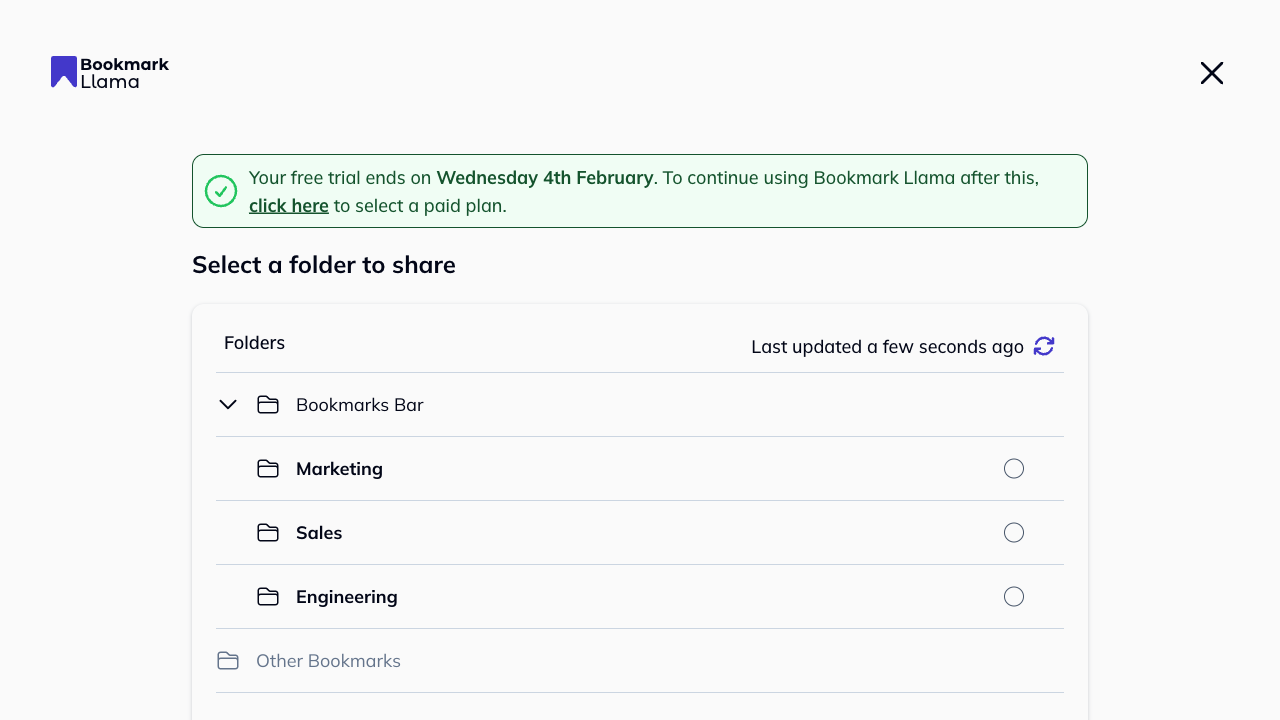
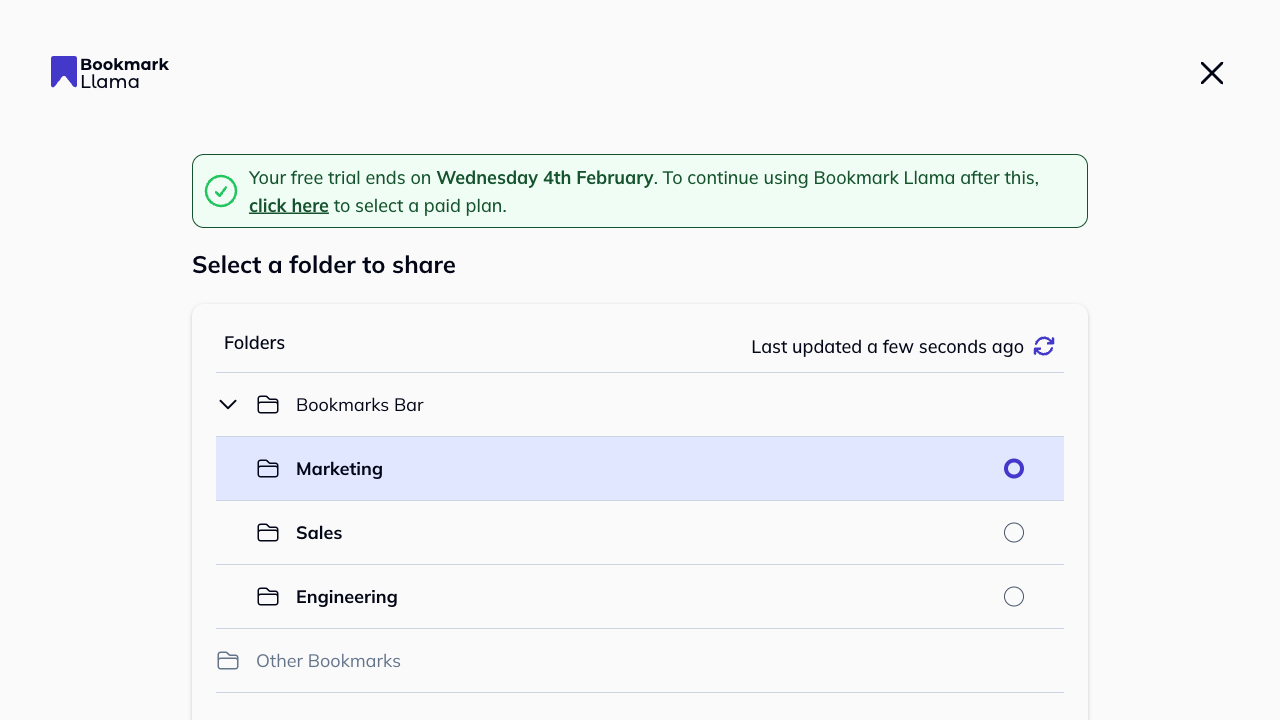
- Select a folder: Choose the folder you want to share from the list and click “Next”.
- Note: You cannot share the root “Bookmark bar” or individual links directly. You must select a specific sub-folder.
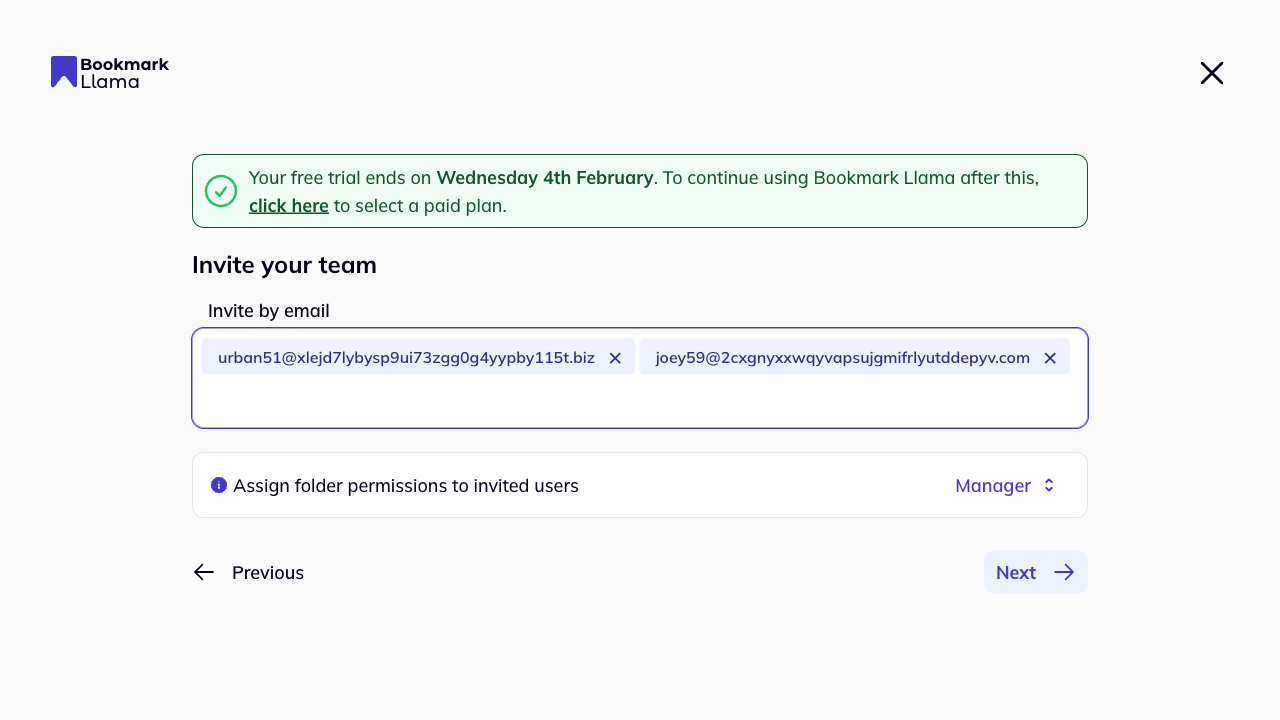
- Add users: Select members from your organization.
- If you haven’t added anyone yet, you can invite them by email here. They will be added to both the folder and your organization.
-
Set permissions: Choose the access level for your invitees:
- Manager: Can edit bookmarks and manage user access.
- Editor: Can add, edit, and delete bookmarks, but cannot manage users.
- Viewer: Read-only access.
-
Click Next to confirm.
Permissions comparison
| Action | Manager | Editor | Viewer |
|---|---|---|---|
| View assigned users/groups | ✓ | ✓ | ✓ |
| Assign users/groups | ✓ | ✗ | ✗ |
| Remove users/groups | ✓ | ✗ | ✗ |
| Update bookmarks | ✓ | ✓ | ✗ |
| Stop sharing | ✓ | ✗ | ✗ |
| Restore from backup | ✓ | ✓ | ✗ |
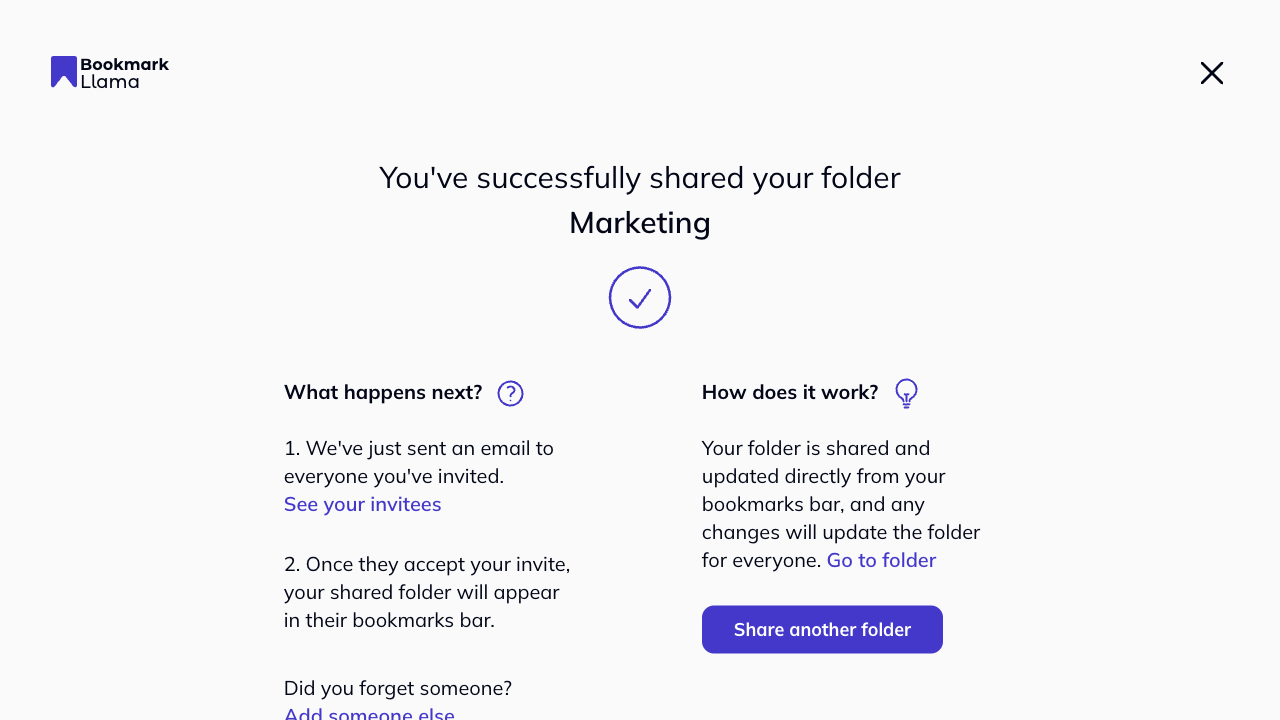
Confirmation
Once shared, you will see a confirmation screen. From here you can:
- View your shared bookmarks folder.
- See the list of invitees.
- Share another folder immediately.
Manage shared folders
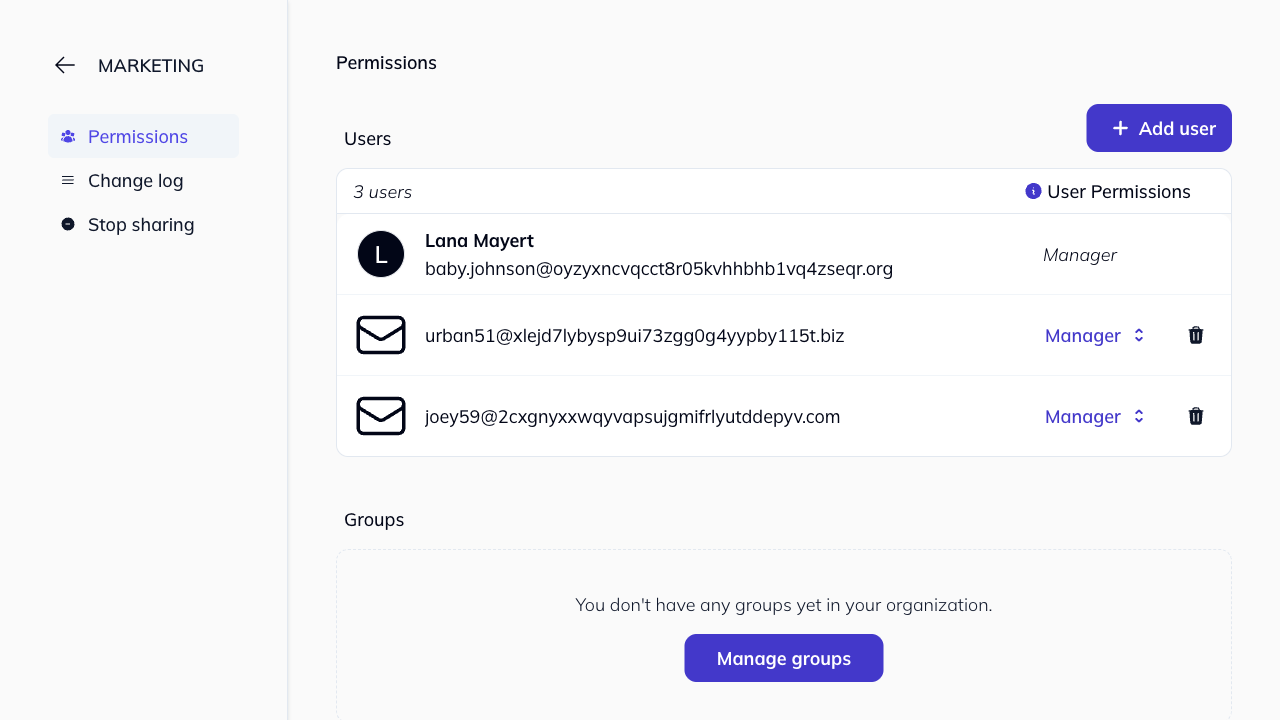
You can update permissions or remove users at any time. For a more detailed overview on setting permissions, see our folder permissions guide.
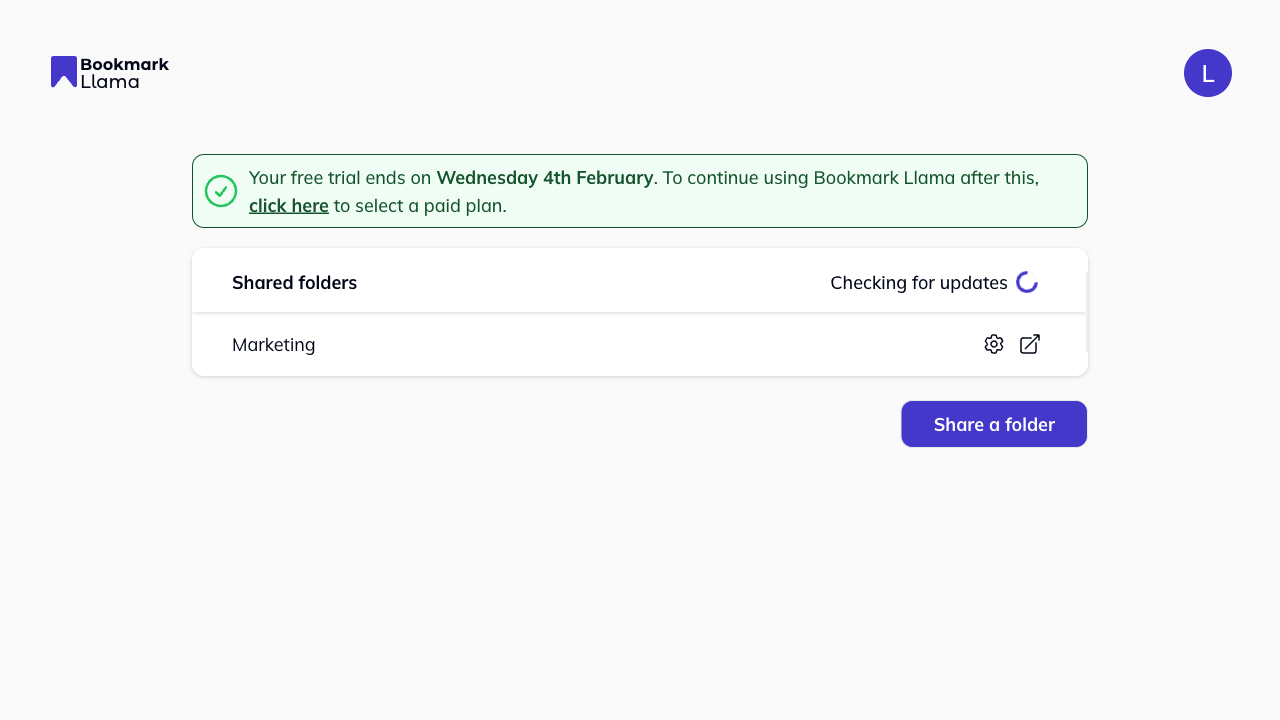
- Go to your dashboard.
- Find the folder in your list and click the cog icon to open Settings.
- From the settings menu, you can manage users and folder preferences.
Invitees need the extension
Your invitees must sign up and install the browser extension to access the folder contents. If prompted, they should verify their email during signup. They can also check out this installation guide for more information.