
Quick start guide
What is Bookmark Llama?
Bookmark Llama is a bookmark sharing tool that syncs folders directly to your team’s browser bookmark bar. Unlike other tools that require opening a separate app or website, shared bookmarks appear natively in your browser, exactly where you’d expect them. If any changes are made to the shared bookmark folders, these changes are automatically synced with the rest of your team in their bookmarks bar.
Why use Bookmark Llama?
- Native browser integration: Shared folders appear directly in your bookmark bar, no extra apps to open.
- Real-time sync: Changes sync instantly across your entire team.
- Permission controls: Choose who can view, edit, or manage each shared folder.
- Works across browsers: Supports Chrome, Edge, and Firefox.
- Enterprise-ready: Optional end-to-end encryption and SAML SSO for organizations that need it.
1. Create your Organization’s Account
Start by creating your account and setting up your organization’s workspace.
-
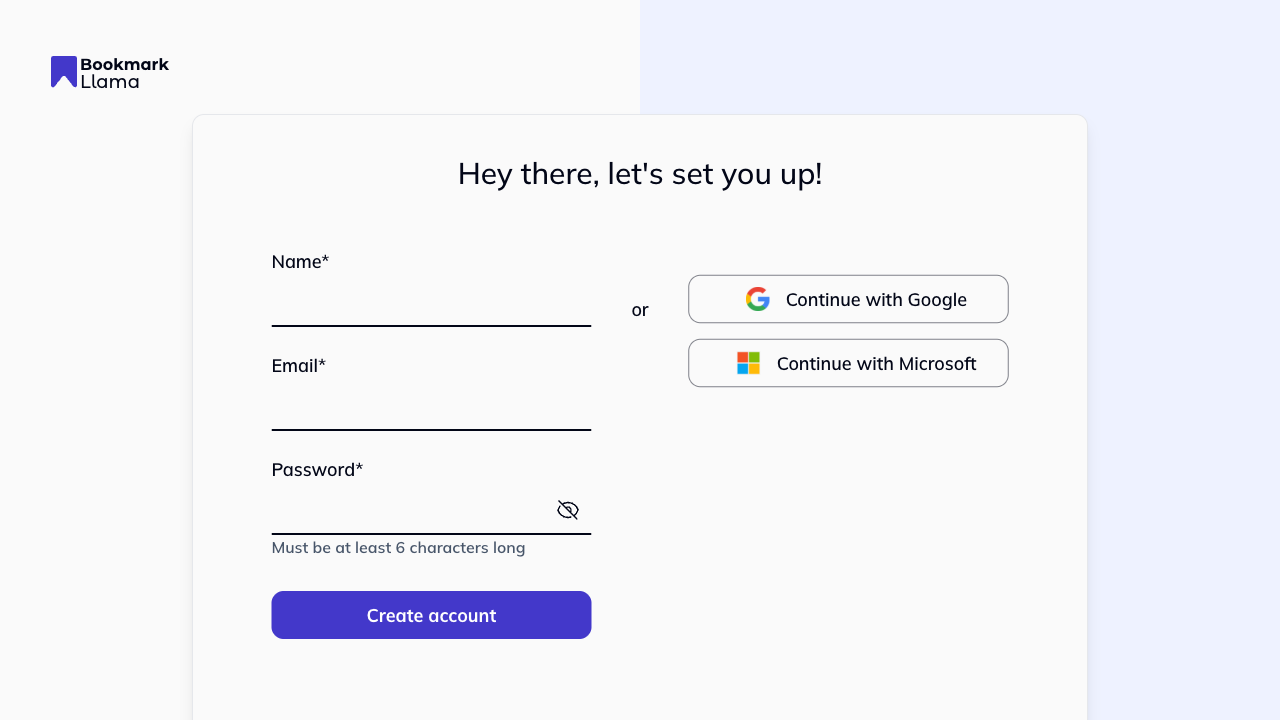
Sign up: If you’re the first person on your team to join, you’ll need to set up the organization environment.
-
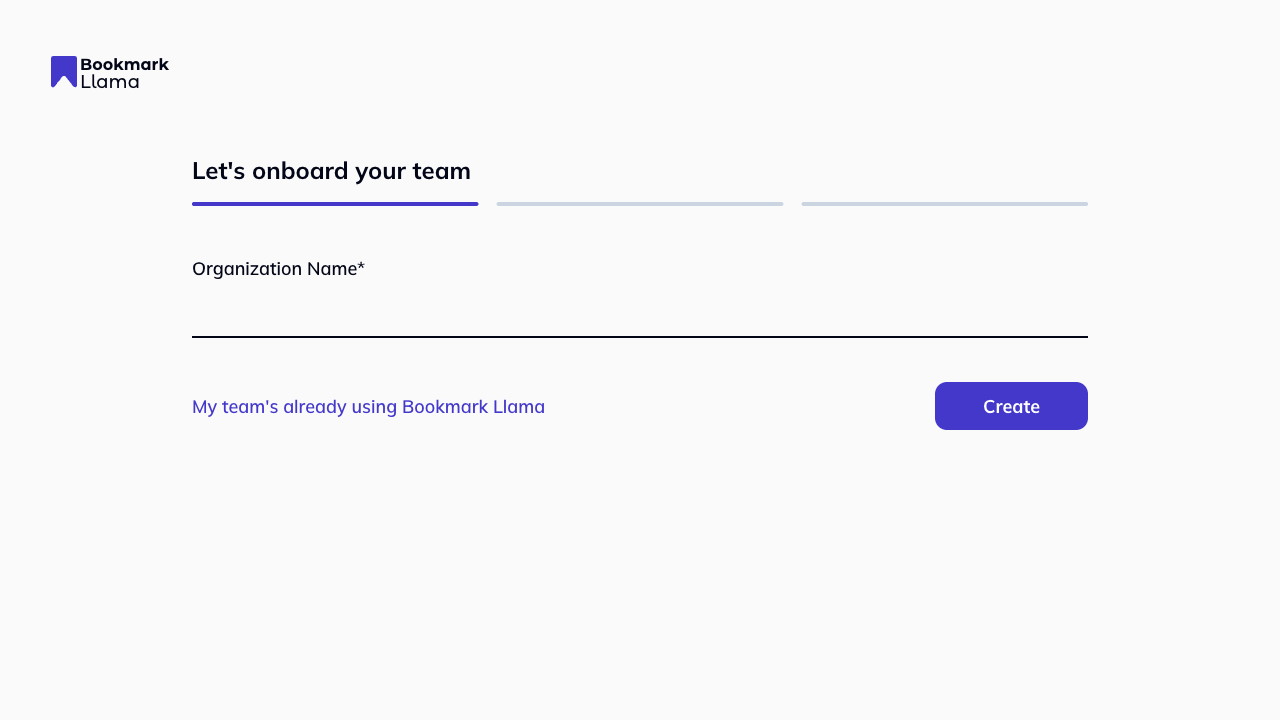
Name your Organization: Choose a name that your colleagues will recognize (e.g., “Marketing Team” or “Acme Corp”).
-
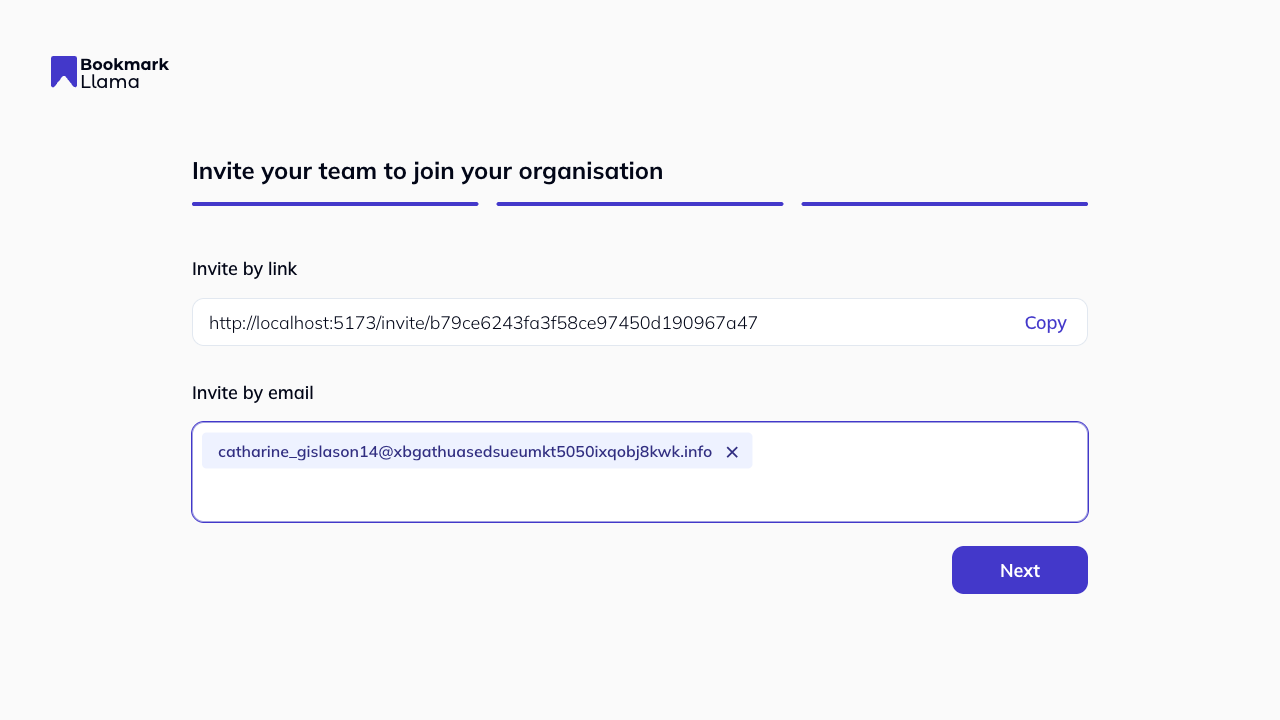
Invite Members: Add teammates by email during onboarding so they are ready to receive shared folders immediately. You can always add more people later from your organization settings. Learn more in the team access guide.
2. Install the Browser Extension
Extension required: You must have the Bookmark Llama browser extension installed to share a folder. If you haven’t installed it yet, follow our installation guide first.
The Bookmark Llama extension connects your browser’s native bookmarks with your team. You and your team members need to install it to access and sync shared folders.
Download the extension for your browser:
3. Share your First Folder
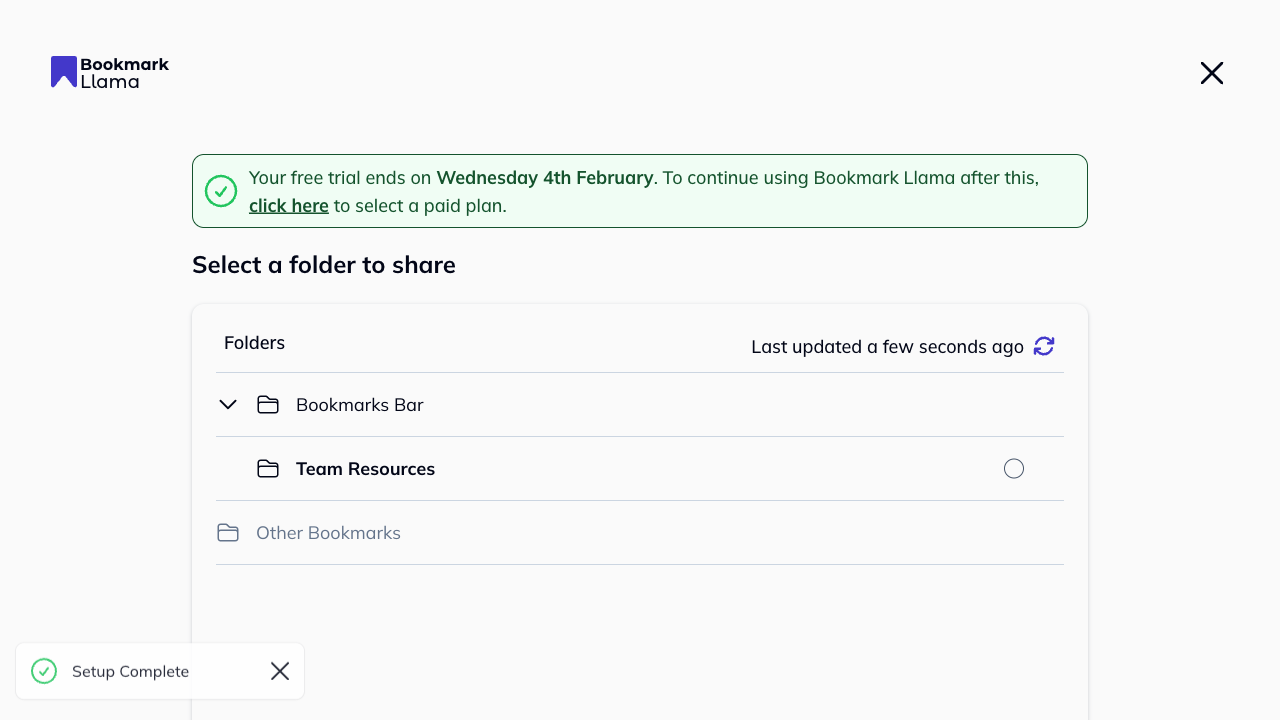
Once the extension is installed, you can share any existing bookmark folder. See share a folder for a detailed guide.
-
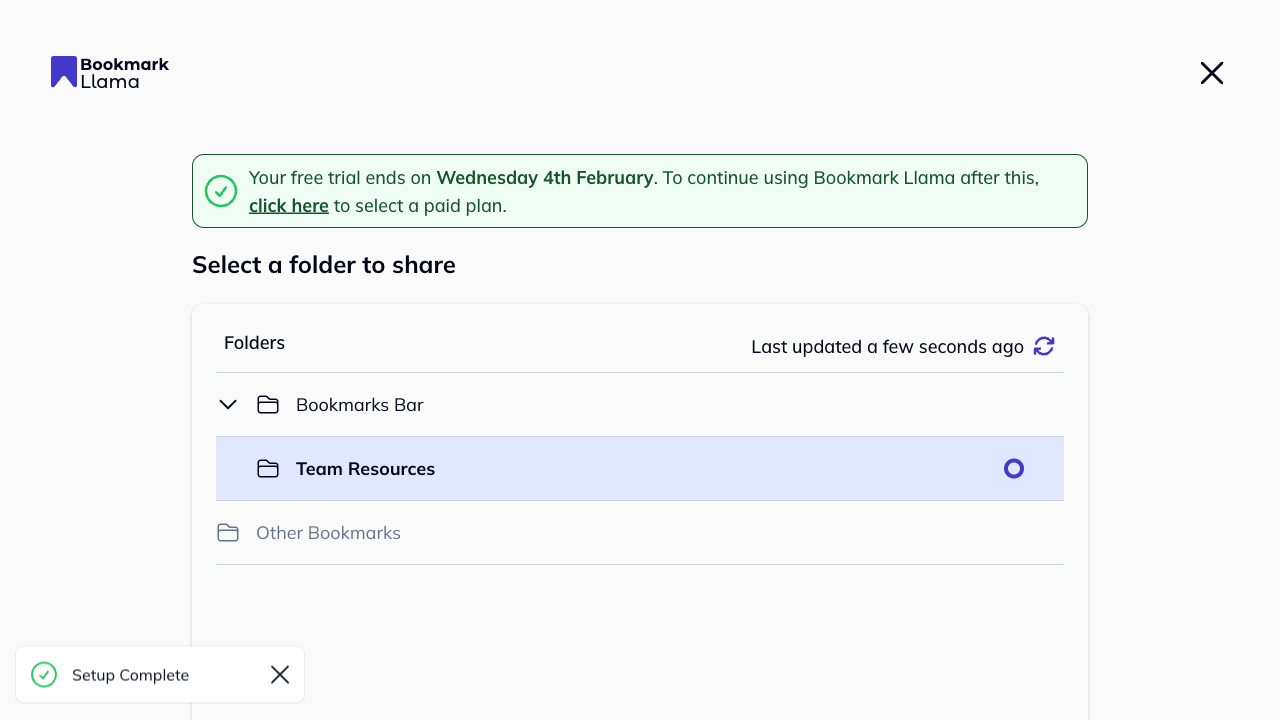
Select a Folder: Choose the specific folder you want to share with your team.
-
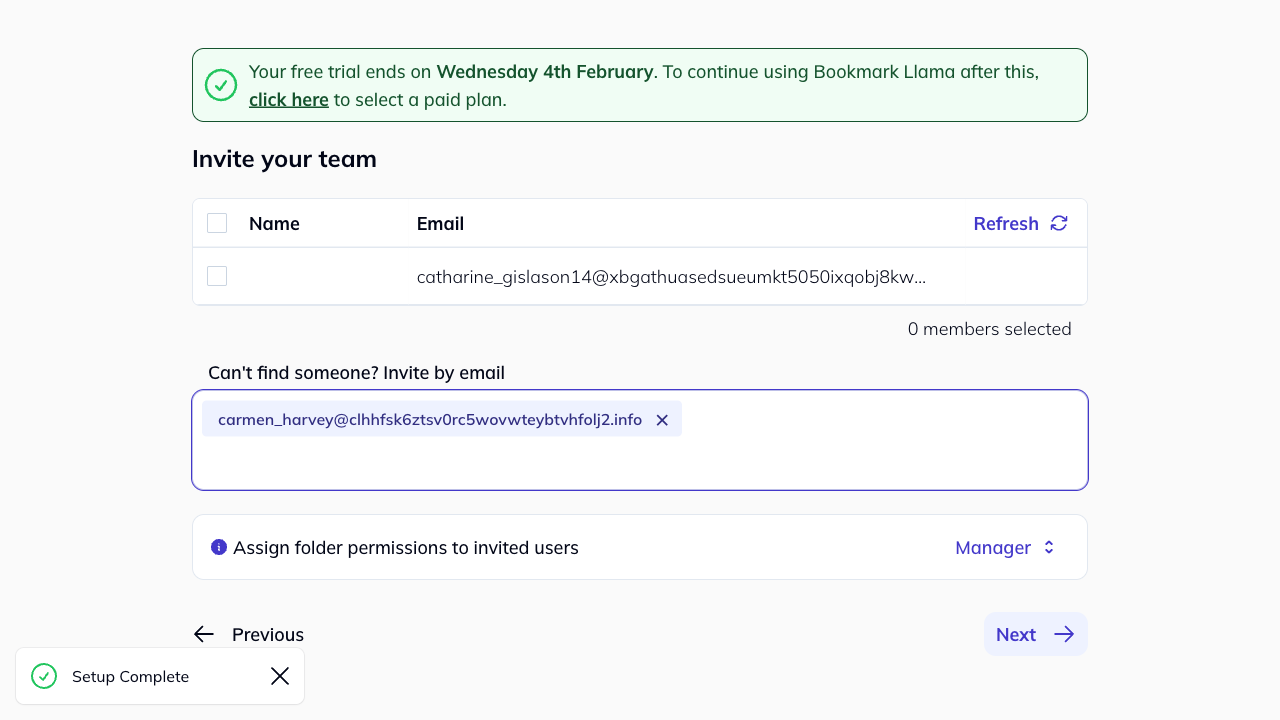
Add Invitees: Select the team members you want to share this folder with or invite them by email.
-
Set Permissions: Choose how they can interact with the folder:
- Manager: Full access. Can add, edit, and delete bookmarks, as well as manage user access to the folder.
- Editor: Can add, edit, and delete bookmarks, and restore the folder to a previous state. Cannot manage users.
- Viewer: Read-only access. Can view bookmarks but cannot make any changes or manage users.
Permissions comparison
| Action | Manager | Editor | Viewer |
|---|---|---|---|
| View assigned users/groups | ✓ | ✓ | ✓ |
| Assign users/groups | ✓ | ✗ | ✗ |
| Remove users/groups | ✓ | ✗ | ✗ |
| Update bookmarks | ✓ | ✓ | ✗ |
| Stop sharing | ✓ | ✗ | ✗ |
| Restore from backup | ✓ | ✓ | ✗ |
4. Confirm and Sync
After sharing, you will see a confirmation screen with options to view your invitees or share another folder.
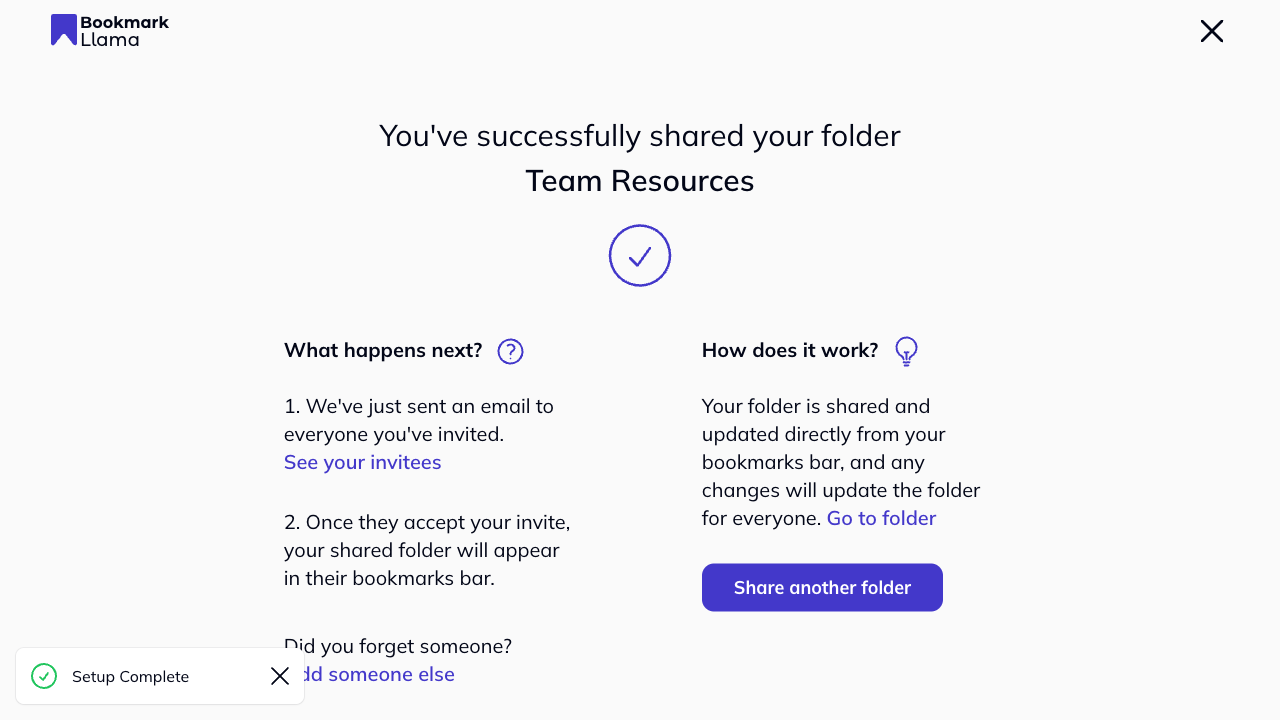
- For your team: They will receive an invitation. If prompted, they should verify their email, complete sign up, and install the browser extension. The shared folder will then automatically appear in their browser’s bookmark bar.
- For you: The folder is now live. Any changes you or your team make (depending on permissions) will sync to everyone else’s browser.
5. Next Steps
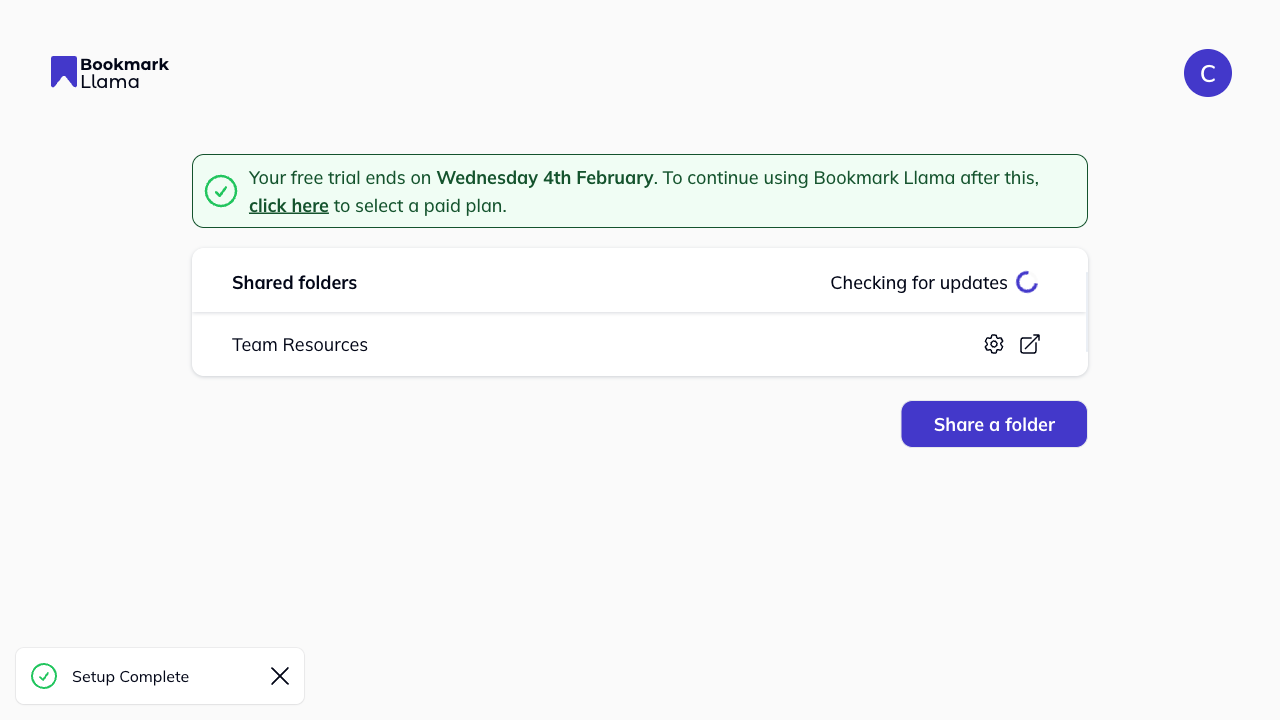
You can manage your shared folders, update permissions, or remove members at any time from the Settings. Go to the dashboard at app.bookmarkllama.com to manage your shared folders, and click the cog icon to go to “Settings”. From there, you can update permissions, restore from backup, or stop sharing.