Groups
What are groups?
Groups let you organize team members, add multiple users to folders and assign folder permissions to multiple people at once. Instead of setting permissions individually, you can add users to a group and manage their access together. When you assign a group to a folder, everyone in that group receives the same permission level.
How to access groups
Note: You can only create groups if you’re an Admin in your organization. You can only add groups to folders if you’re a Manager of that folder. See organization permissions or folder permissions for more details.
- Go to your dashboard at app.bookmarkllama.com.
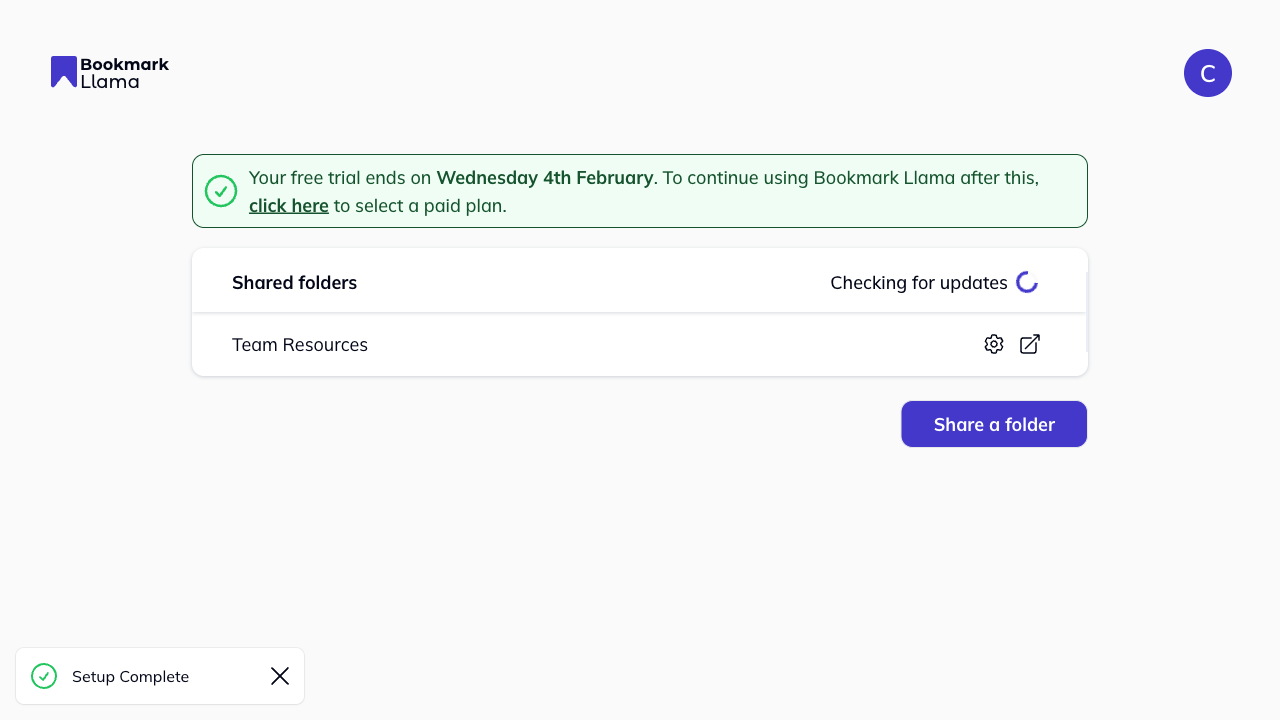
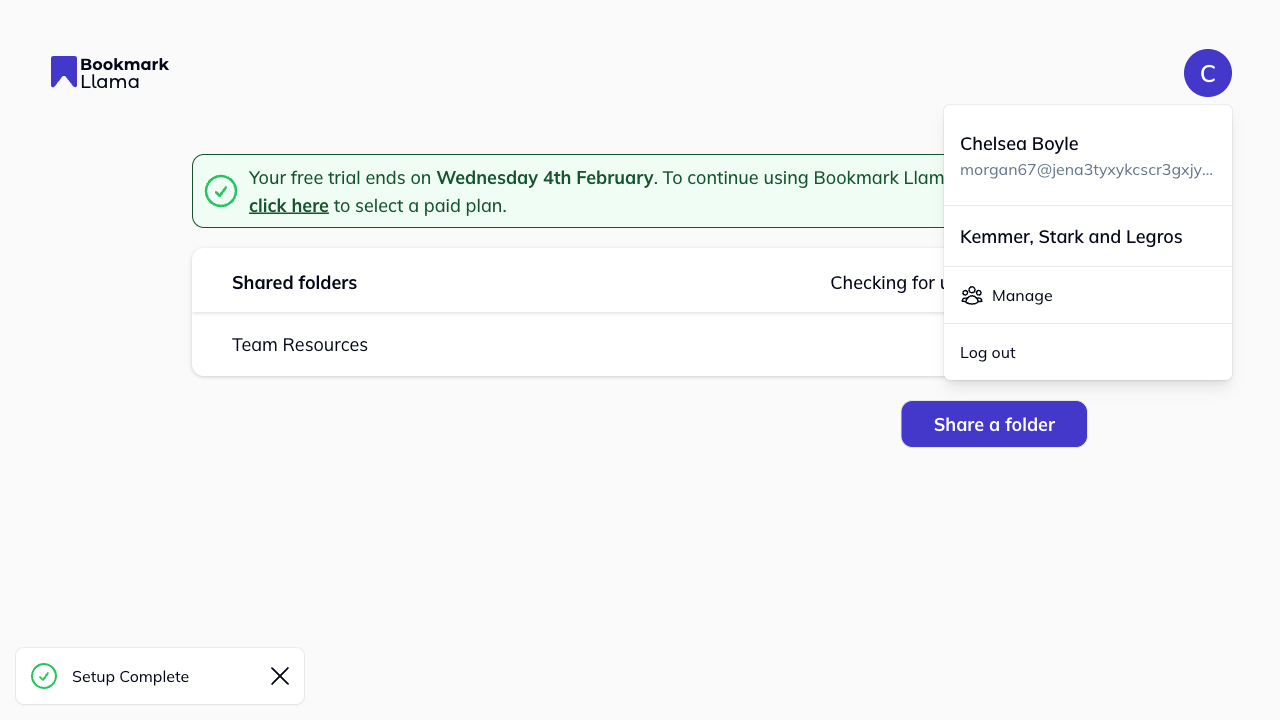
- Click your profile icon in the top right corner and click Manage to open your organization settings.
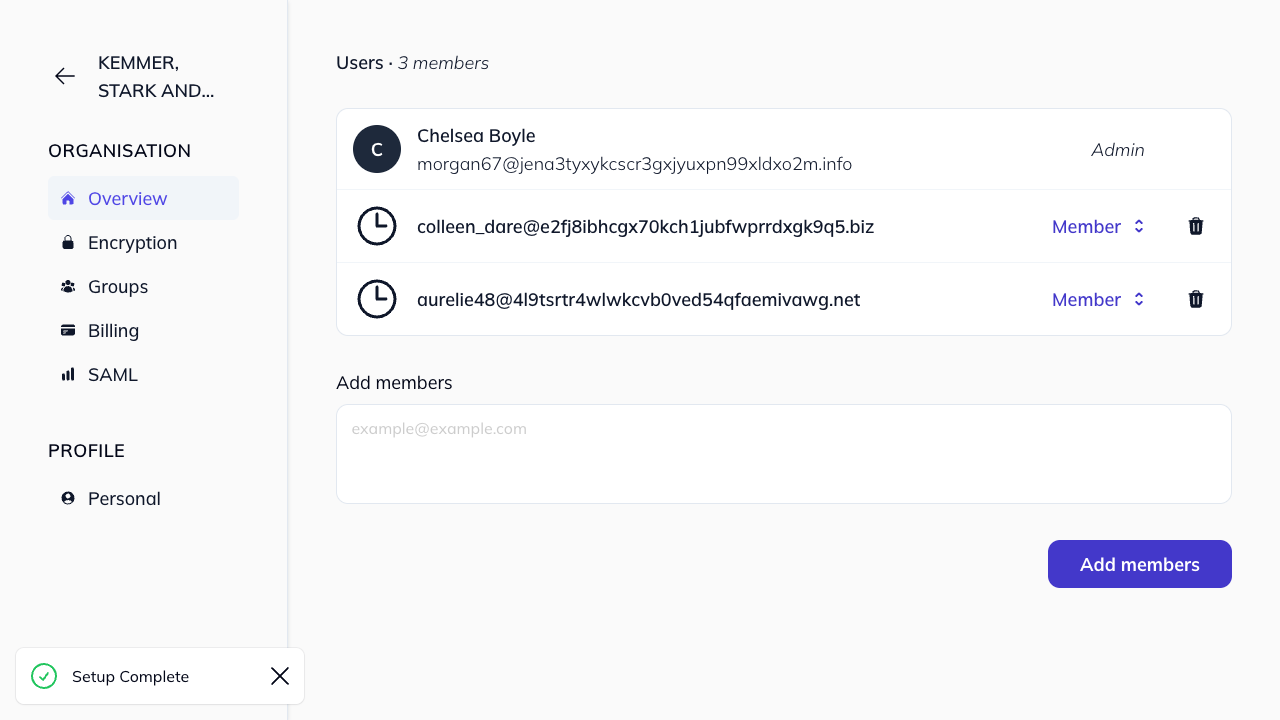
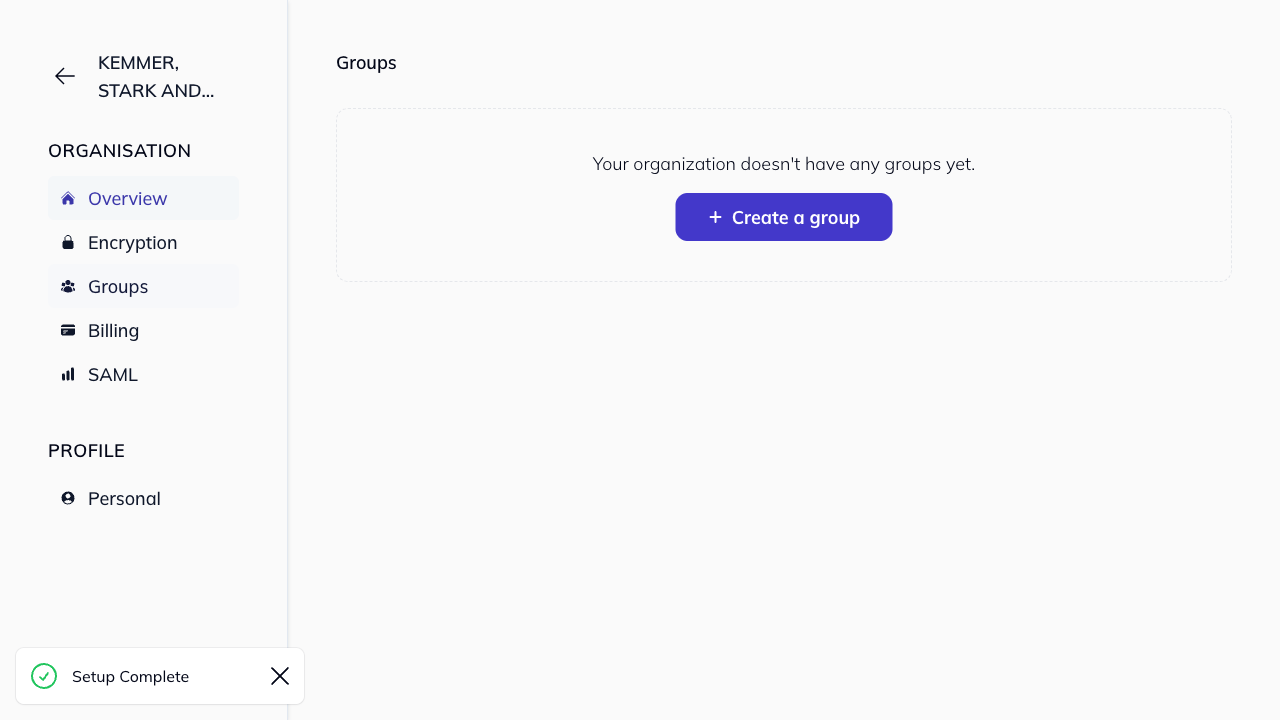
- Click Groups in the left-hand sidebar under Organization.
How to create a group
Only Admins of an organization can create groups. See organization permissions for more details.
-
Navigate to the Groups section (see above).
-
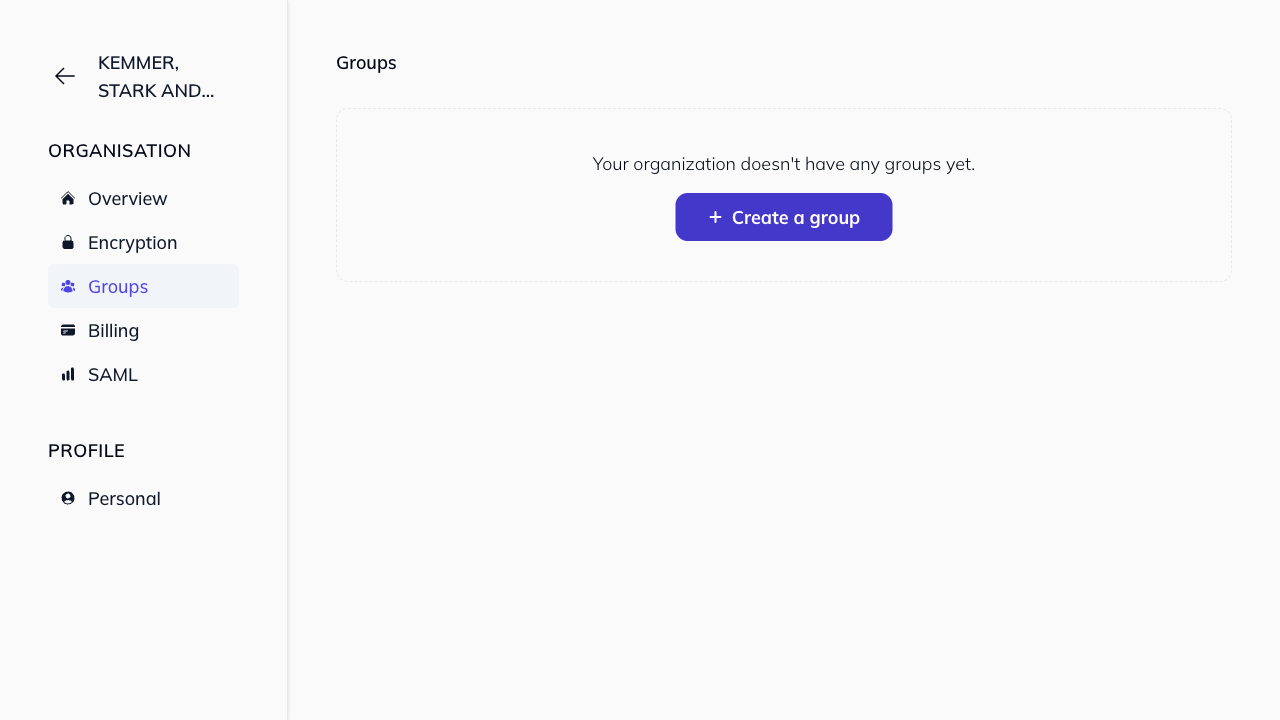
Click Create a group.
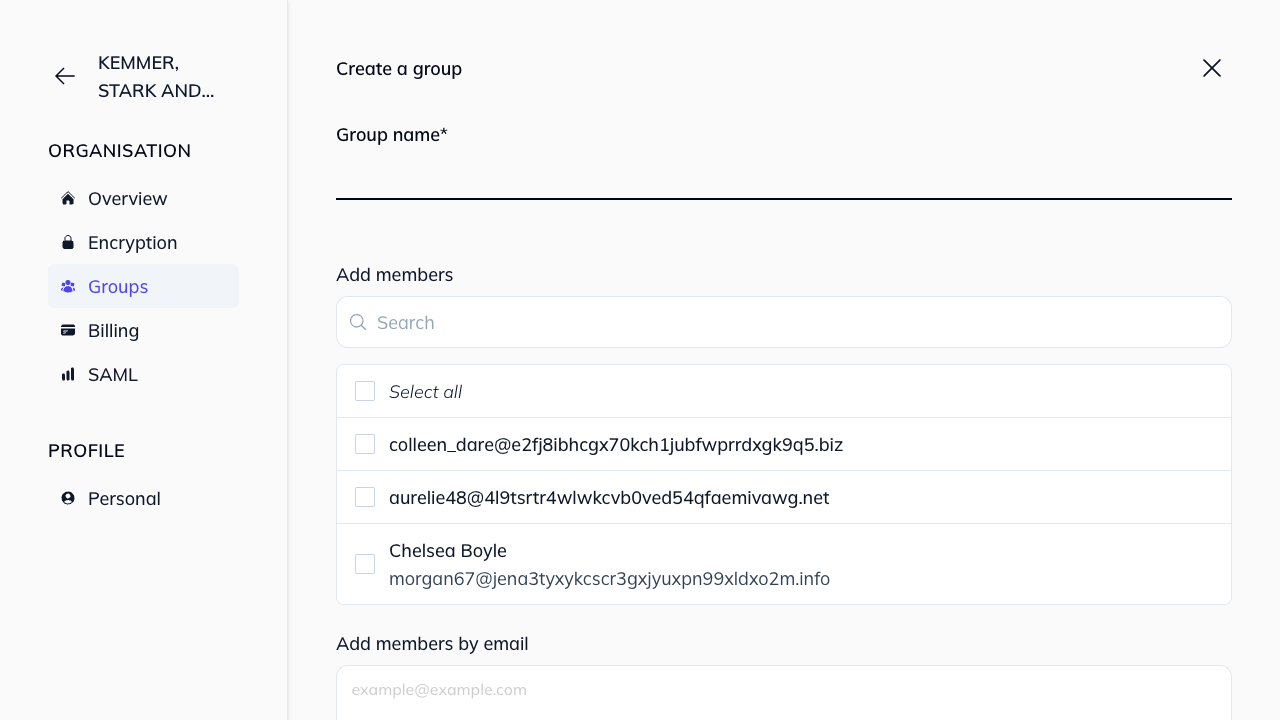
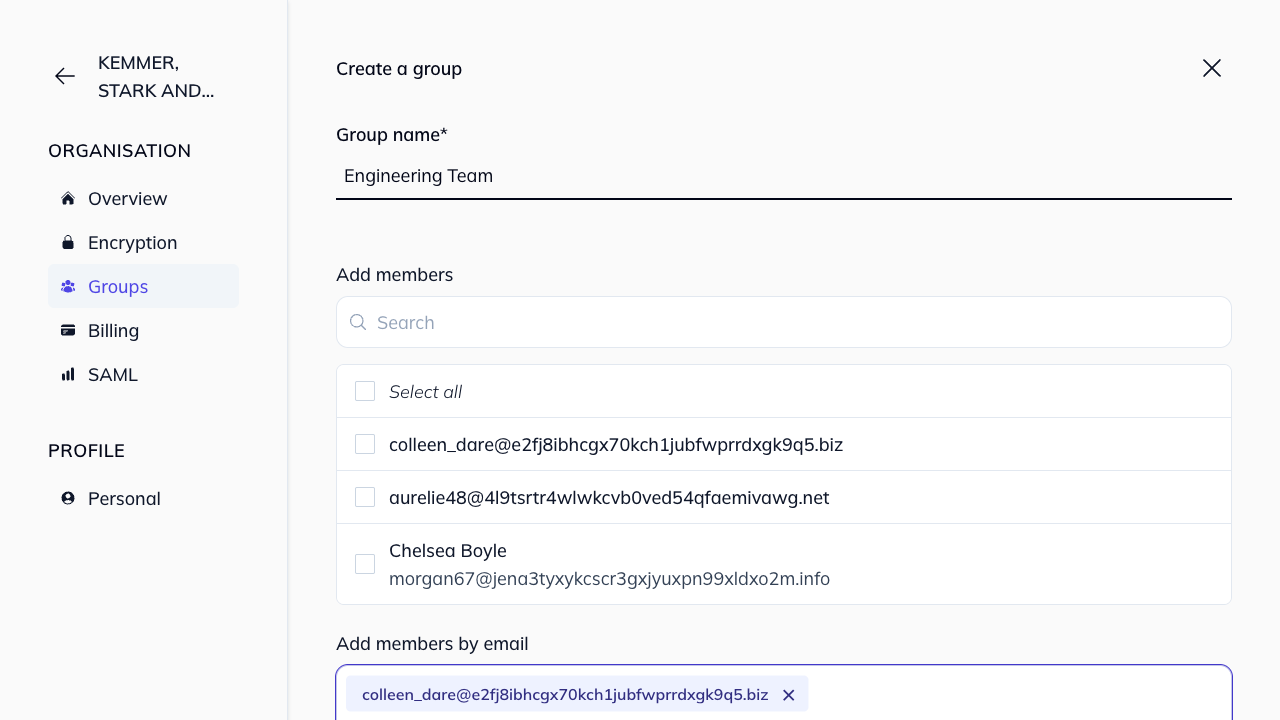
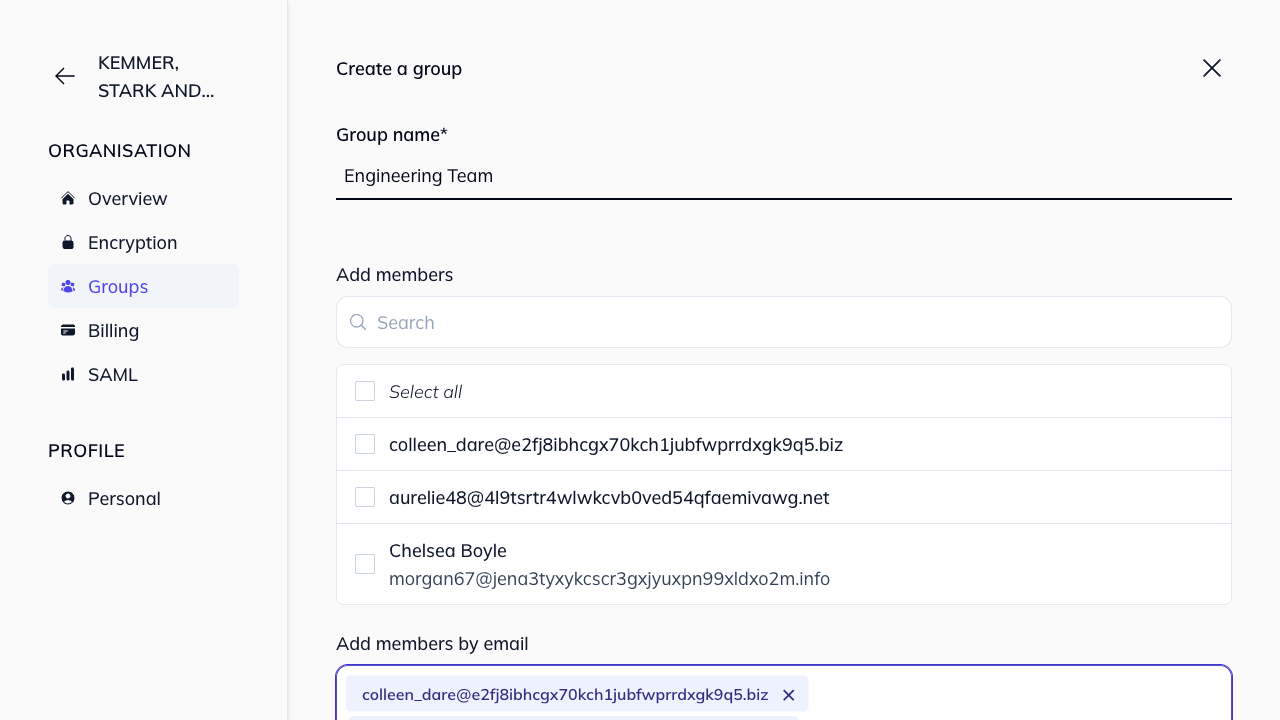
- Enter a Group name.
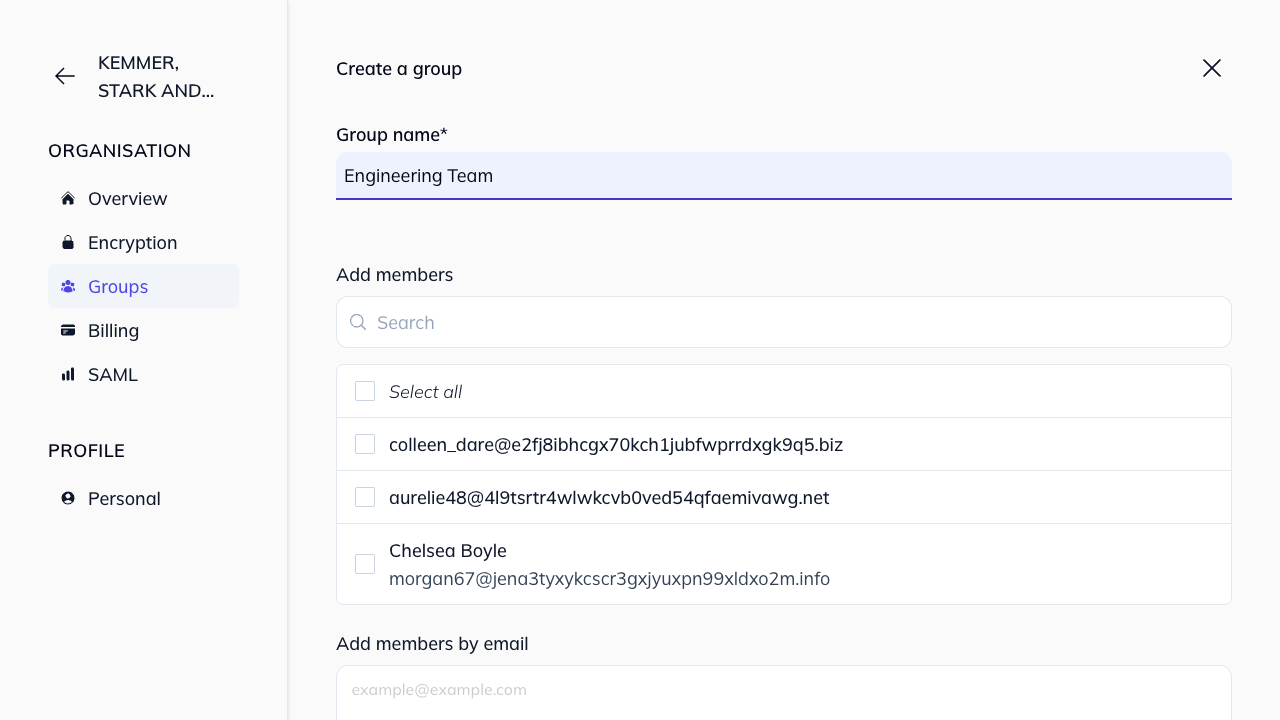
- Add members to the group:
- Select from your organization: Check the boxes next to existing organization members.
- Add members by email: Enter email addresses directly to invite new users.
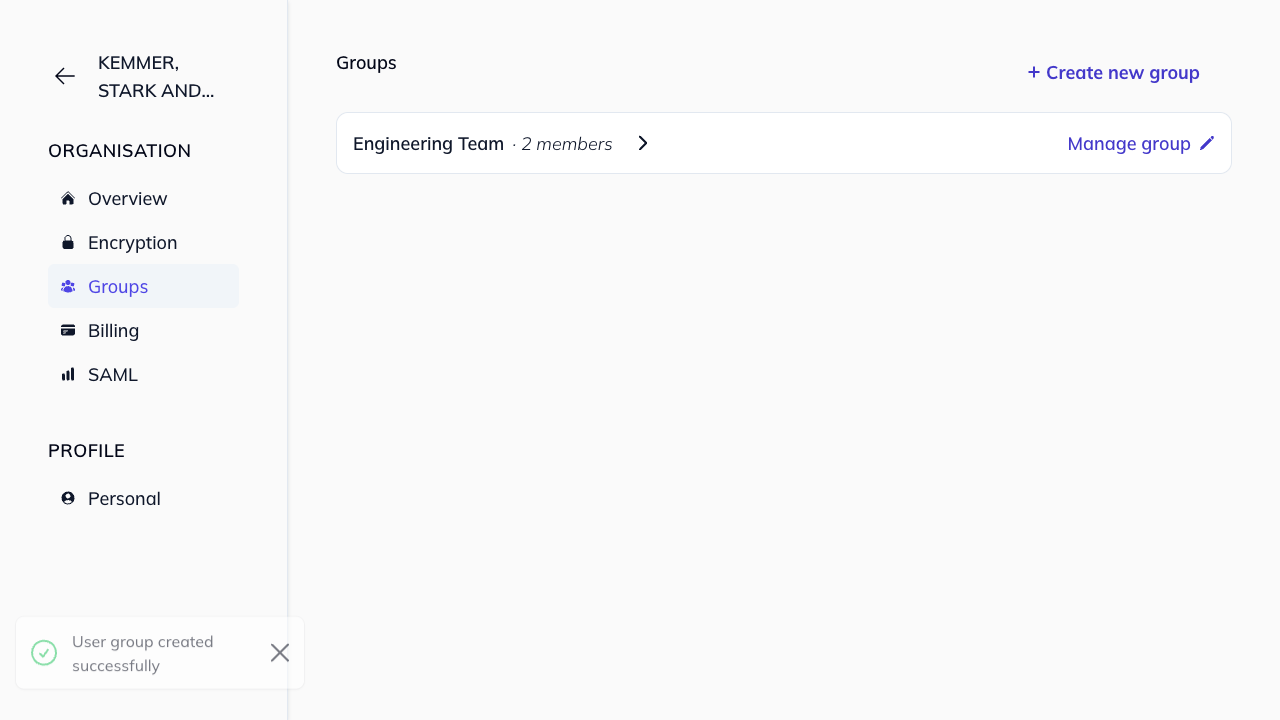
- Click Create Group.
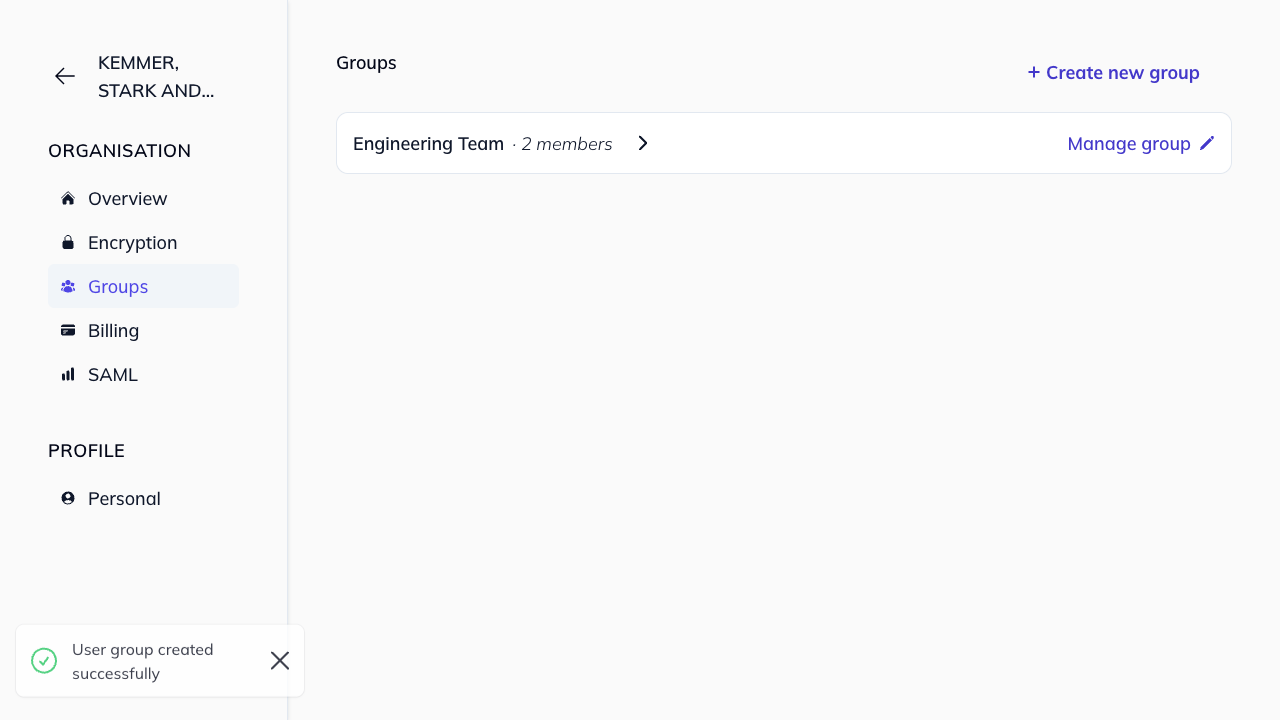
The group is now available to assign to any shared folder.
How to manage a group
Only Admins of an organization can manage groups. See organization permissions for more details.
Once a group is created, you can update it at any time:
-
Navigate to the Groups section.
-
Click on the group you want to manage.
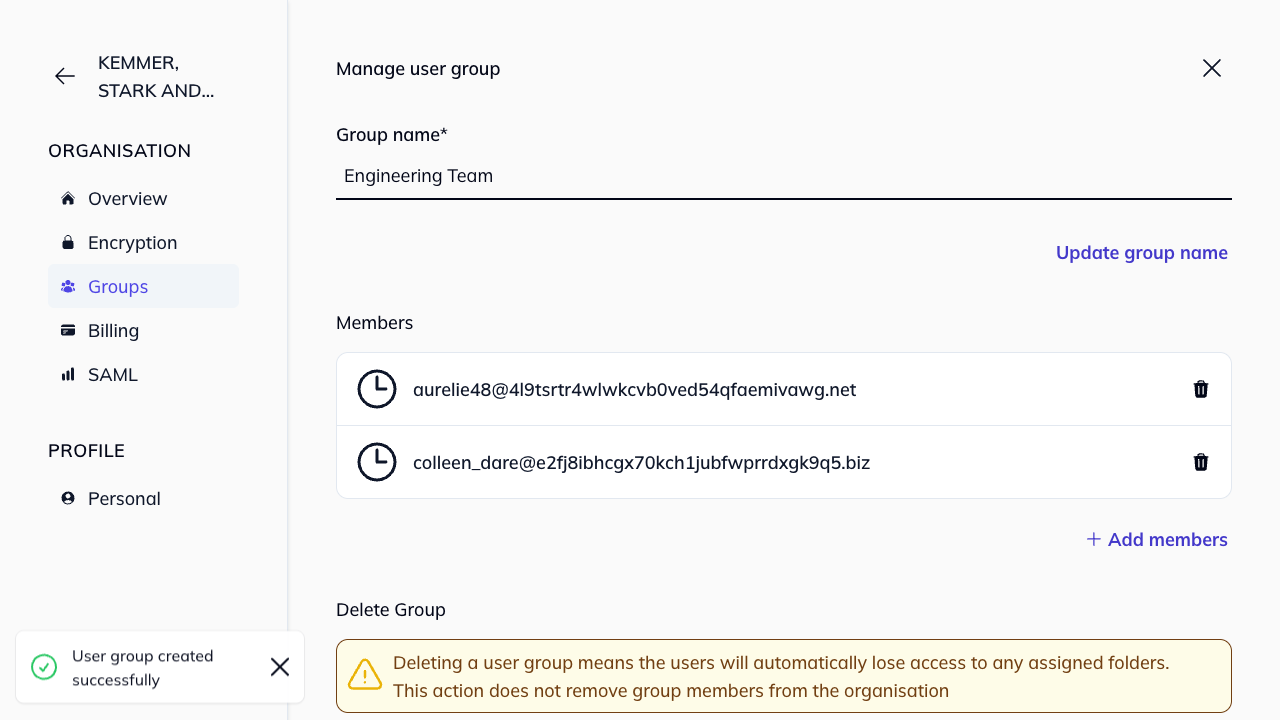
- From the Manage user group panel, you can:
- Update group name: Edit the name and click Update group name.
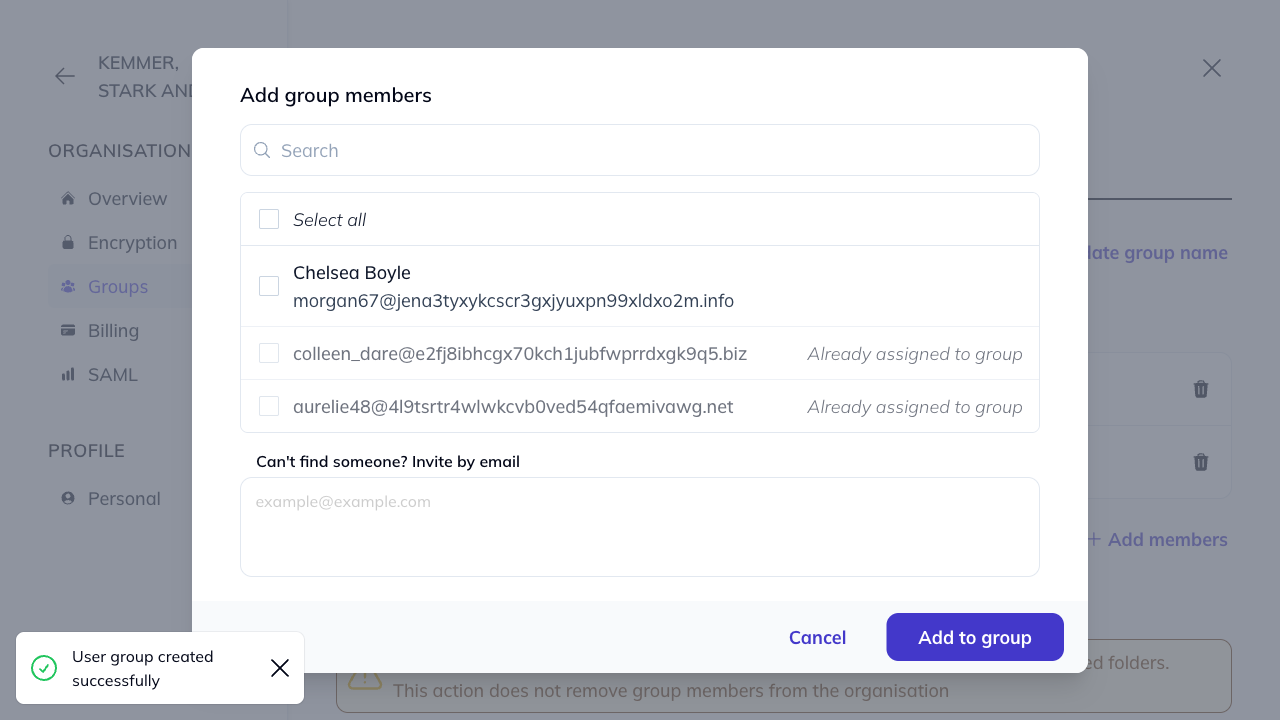
- Add members: Click + Add members and select users or enter email addresses.
- Remove members: Click the trash icon next to a member’s name.
How to add a group to a folder
Only Managers of a folder can add groups and set their permissions. Editors and Viewers cannot add or manage groups within a folder. See folder permissions for more details.
- Go to your shared folder settings from the dashboard. Find the folder you want to add the group to and click the cog icon ().
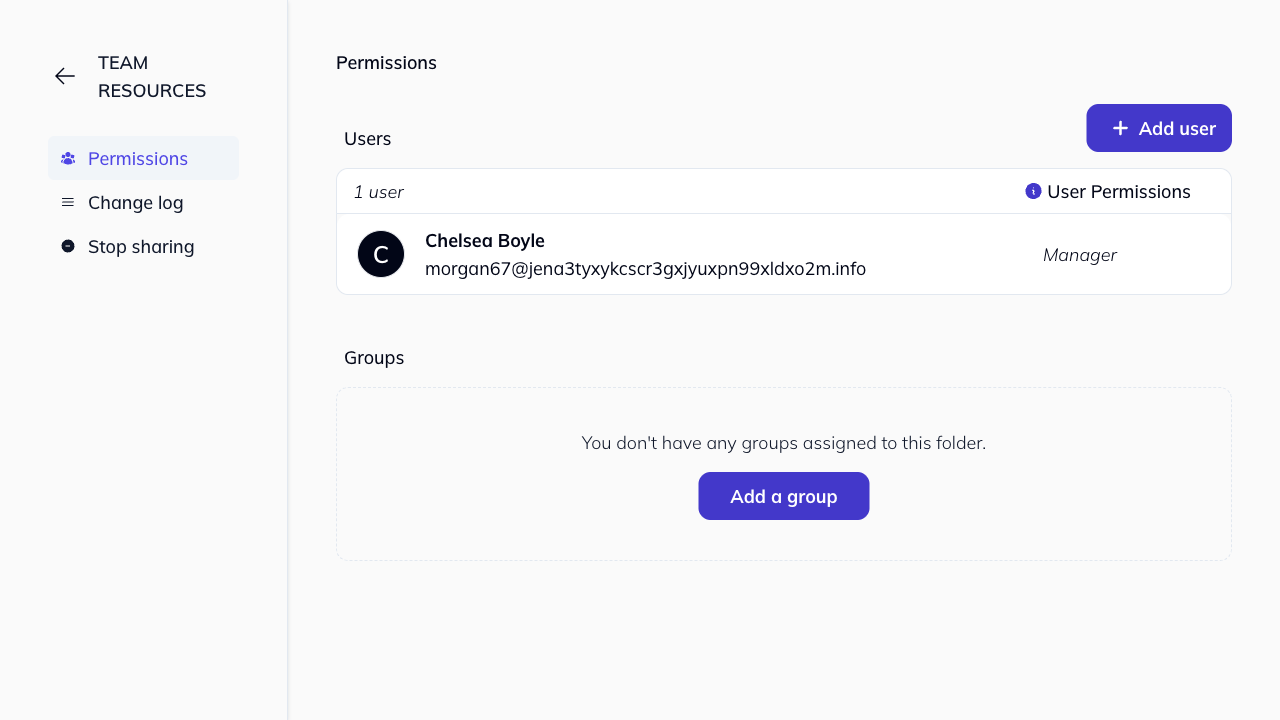
- On the Permissions tab, click + Add a group.
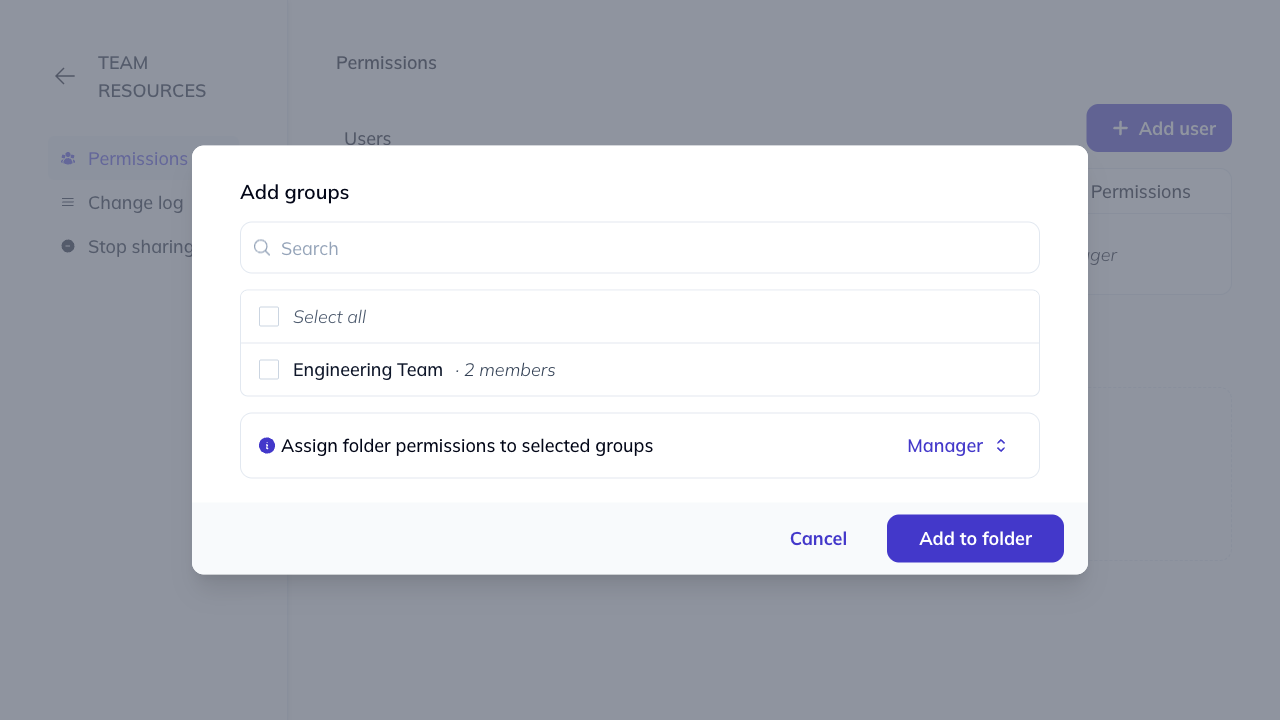
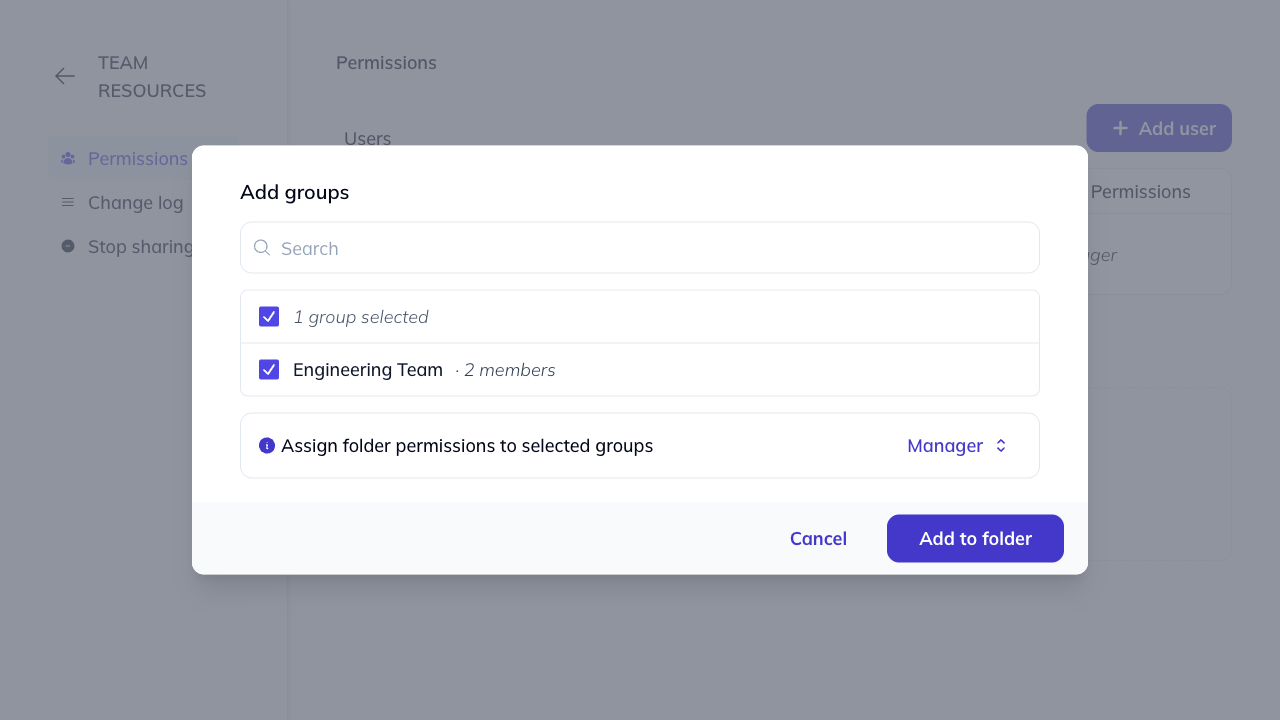
- Select the groups you want to add from the list.
-
Choose the permission level using the Assign folder permissions to selected groups dropdown:
- Manager: Full control over the folder
- Editor: Can add, edit, and delete bookmarks
- Viewer: Read-only access
-
Click Add to folder.
Everyone in the group will receive the assigned permission level for that folder. Folder managers can change a group’s permissions at any time, just like individual users.
Who can manage groups in a folder?
| Action | Manager | Editor | Viewer |
|---|---|---|---|
| Add groups to folder | ✓ | ✗ | ✗ |
| Remove groups from folder | ✓ | ✗ | ✗ |
| Change group permissions | ✓ | ✗ | ✗ |
How to delete a group
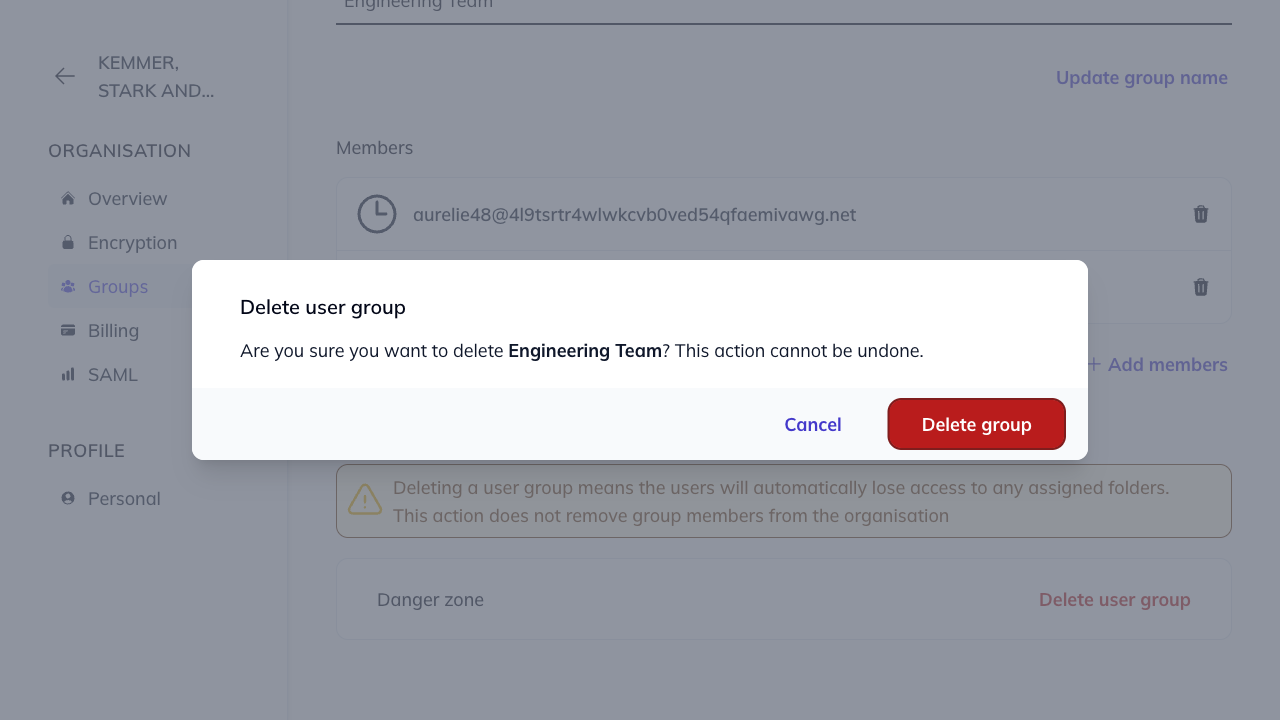
Warning: Deleting a user group means the users will automatically lose access to any assigned folders. This action does not remove group members from the organization.
-
Navigate to the Groups section.
-
Click “Manage group” on the group you want to delete.
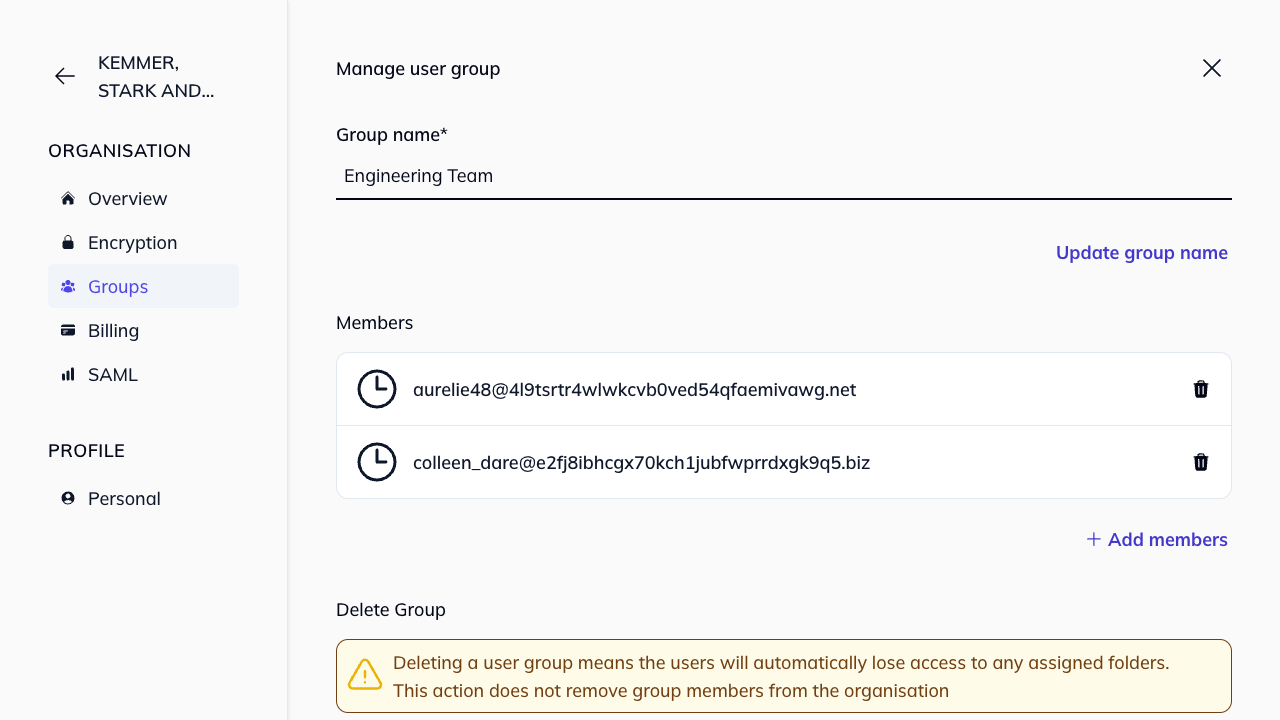
- In the Delete Group section (Danger zone), click Delete user group.
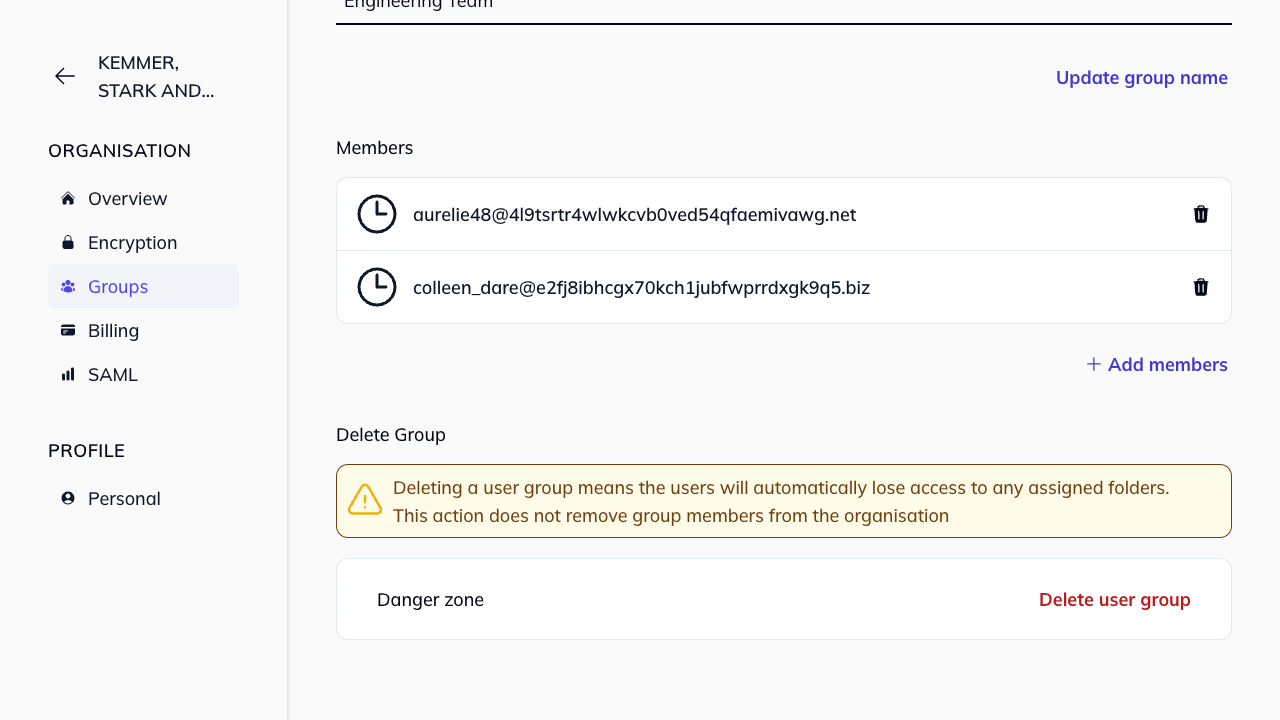
- Confirm the deletion.