
We all have those essential websites and resources we bookmark/favourite in Chrome for later use. Whether for work, research, or personal interest, these saved links are often an invaluable part of our web-browsing workflow. Sadly, when it comes to sharing our Chrome bookmarks, the experience is quite tedious and limited. In this post, we will teach you all the methods to share your bookmarks with anyone, from the basic to the most involved.
Method 1 - Multi-Select Copy and Paste (Basic)
The most basic way to share a list of bookmarks is to copy & paste them into an email or your preferred text-based communication. This method is perfect for sharing a small number of bookmarks in a single folder that will never change.
- Open Bookmark Manager by clicking
⋮in the top right of Chrome and then selectingBookmarks and lists > Bookmark Managerfrom the dropdown (alternatively, you can use the keyboard shortcutCTRL+SHIFT+Oon Windows & Linux or⌥+⌘+Bon Mac). - Hold
Shiftand select all of the bookmarks you’d like to copy. - Right-click and select
Copy. - Paste the bookmark URLs wherever you want to send them or store them.
Method 2 - Bookmark Llama (Automatic)
Bookmark Llama makes sharing bookmarks with others feel like a native feature of Chrome. Whenever you make changes to a bookmark folder that you have decided to share, these changes are instantly viewable by everyone you have invited.
- Ensure your bookmark bar is enabled and that you have folders on it.
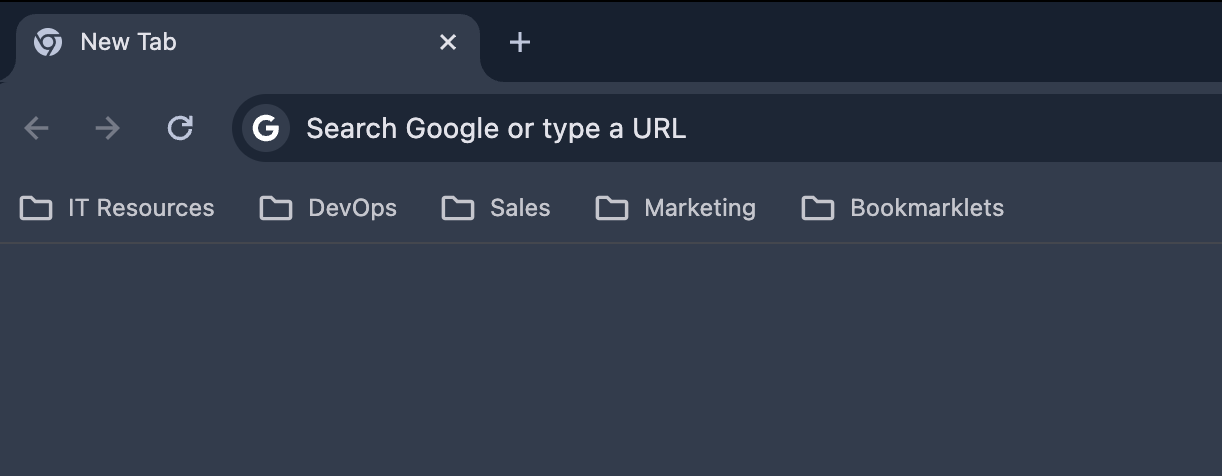
- Signup for Bookmark Llama
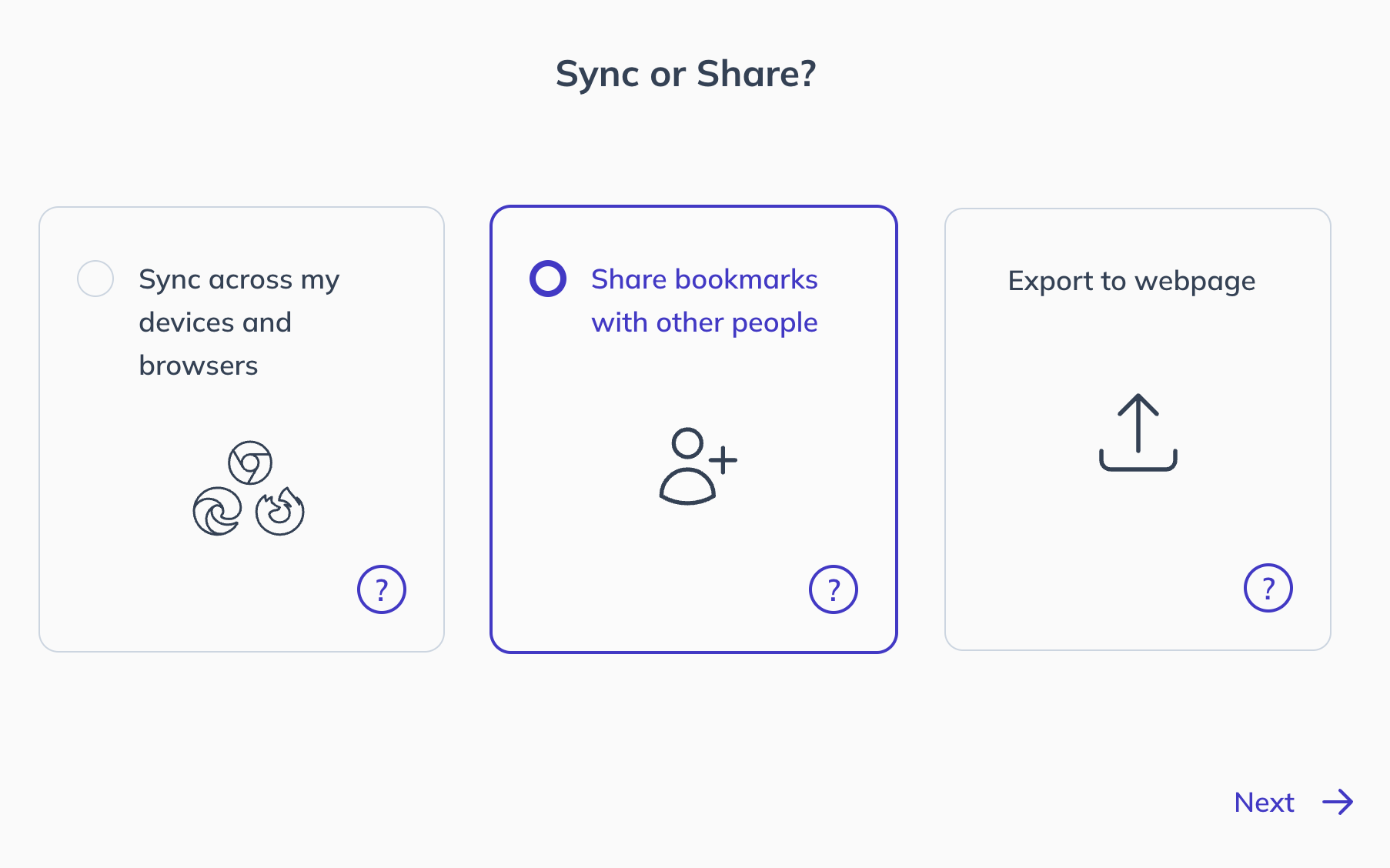
- Select Share with others from the setup wizard
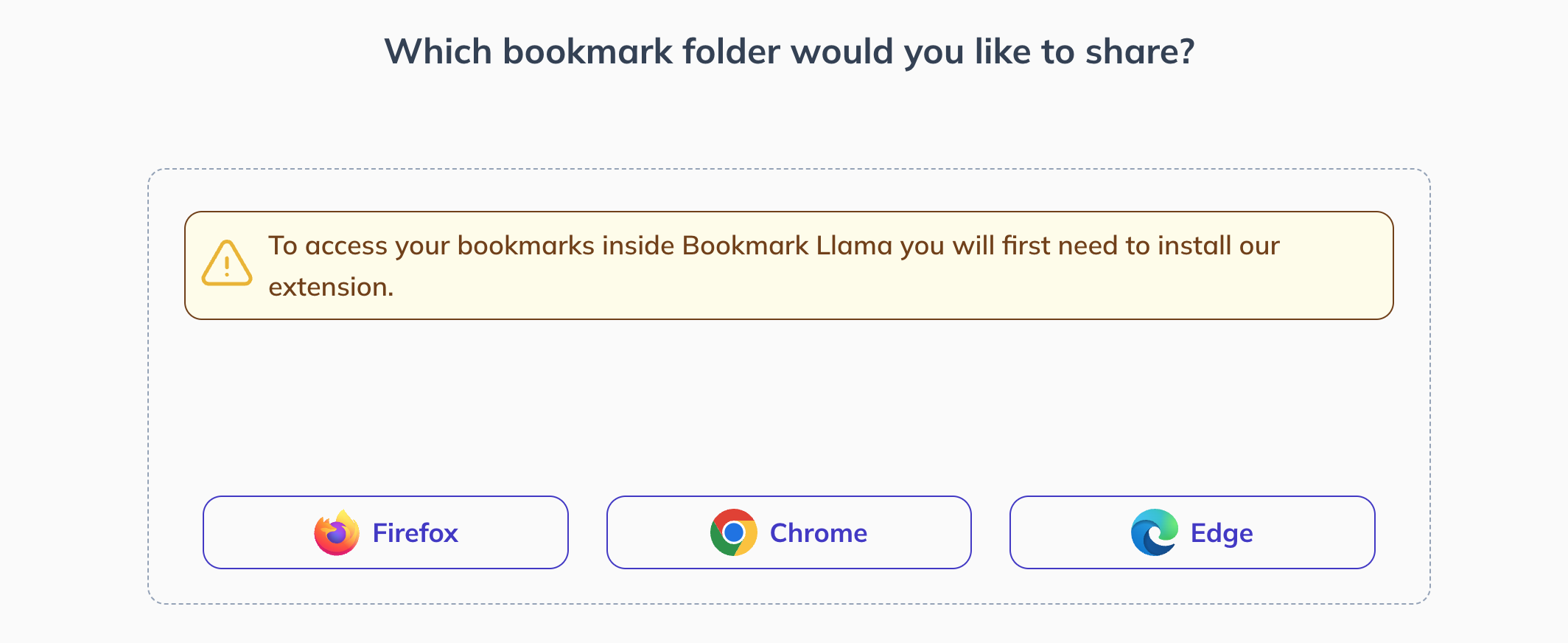
- Give Bookmark Llama access to see your shared folders by installing the extension for Chrome.
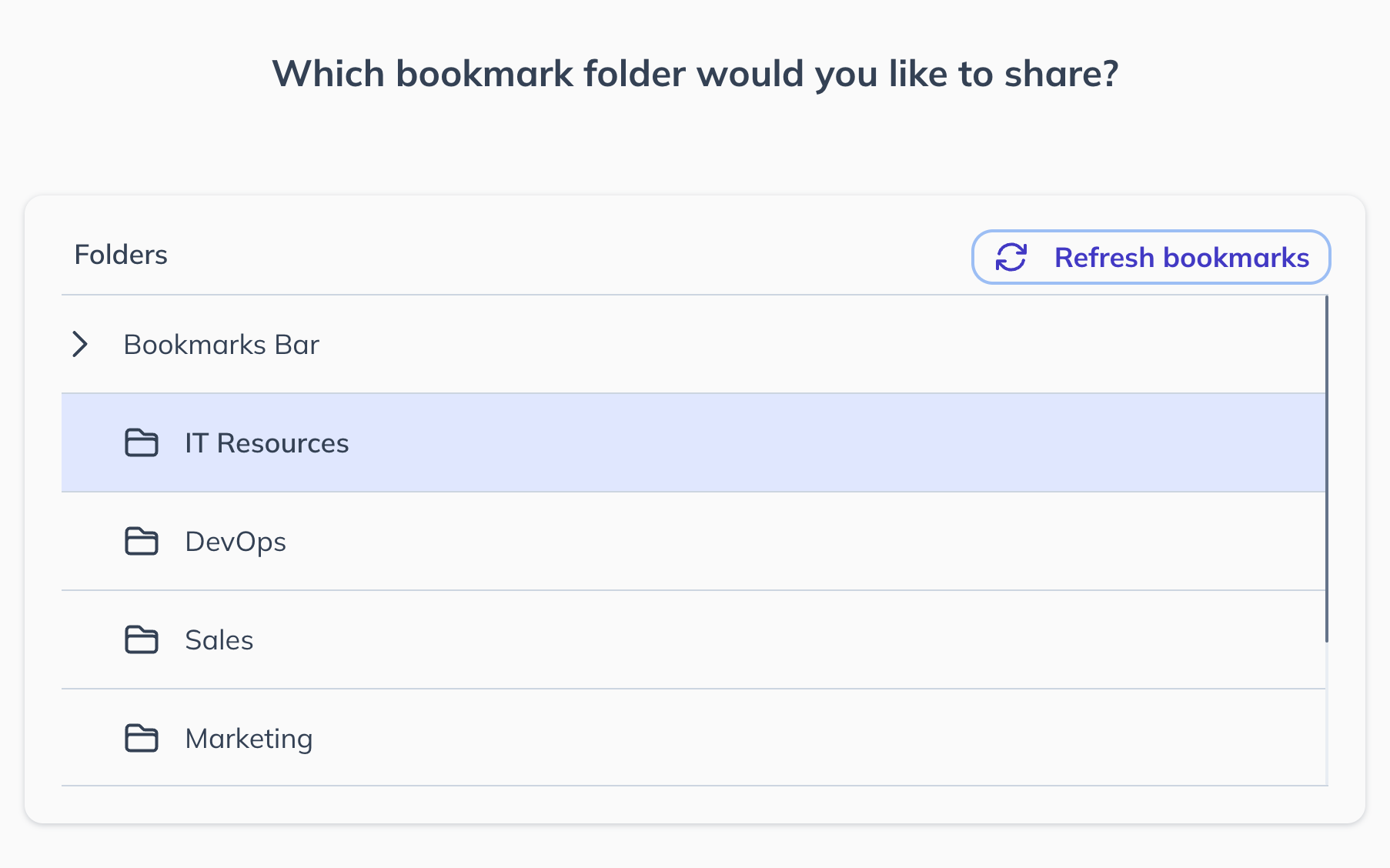
- Select which folder you would like to share.
- Decide who you would like to share the folder with.
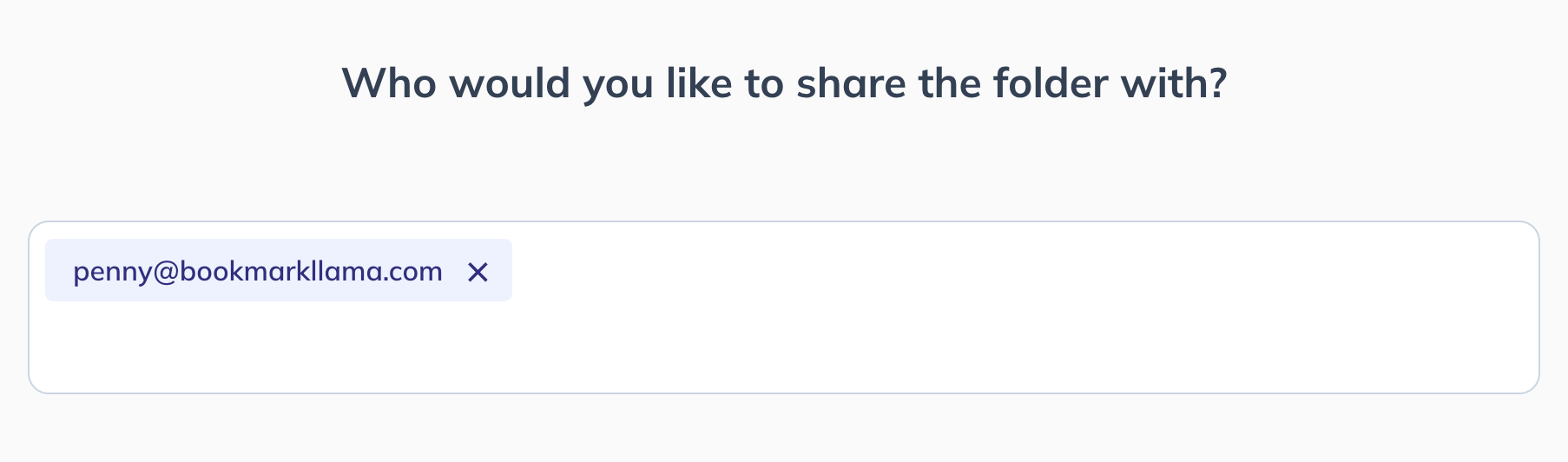
- Click the share button to confirm that you would like to share this folder.
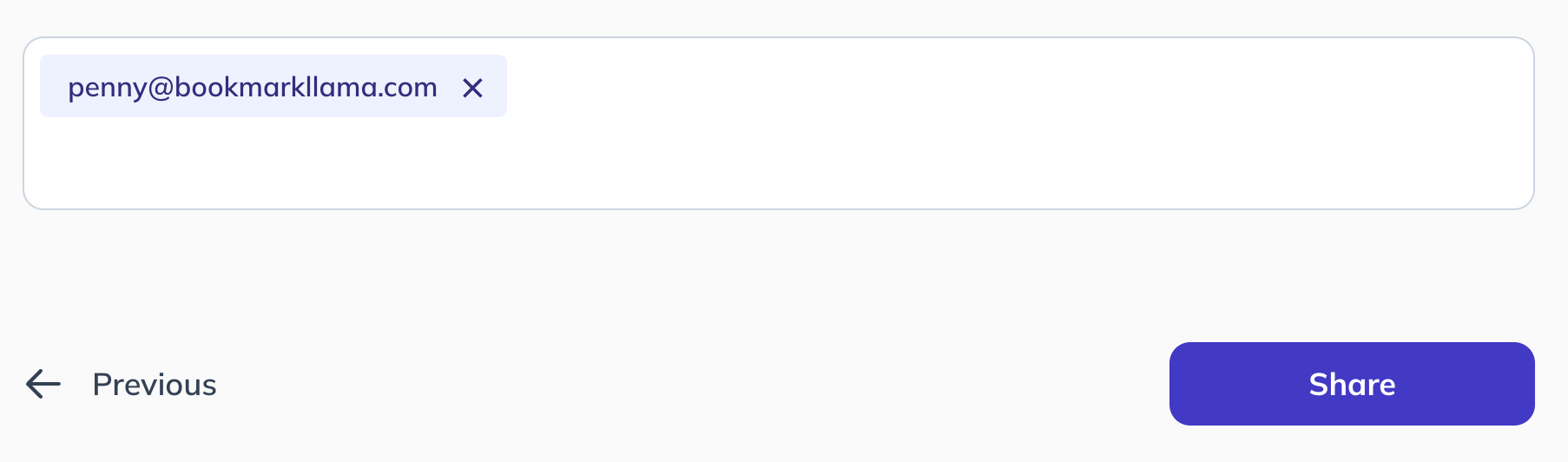
Method 3 - Partial Export to HTML with a temporary Chrome profile (Tedious)
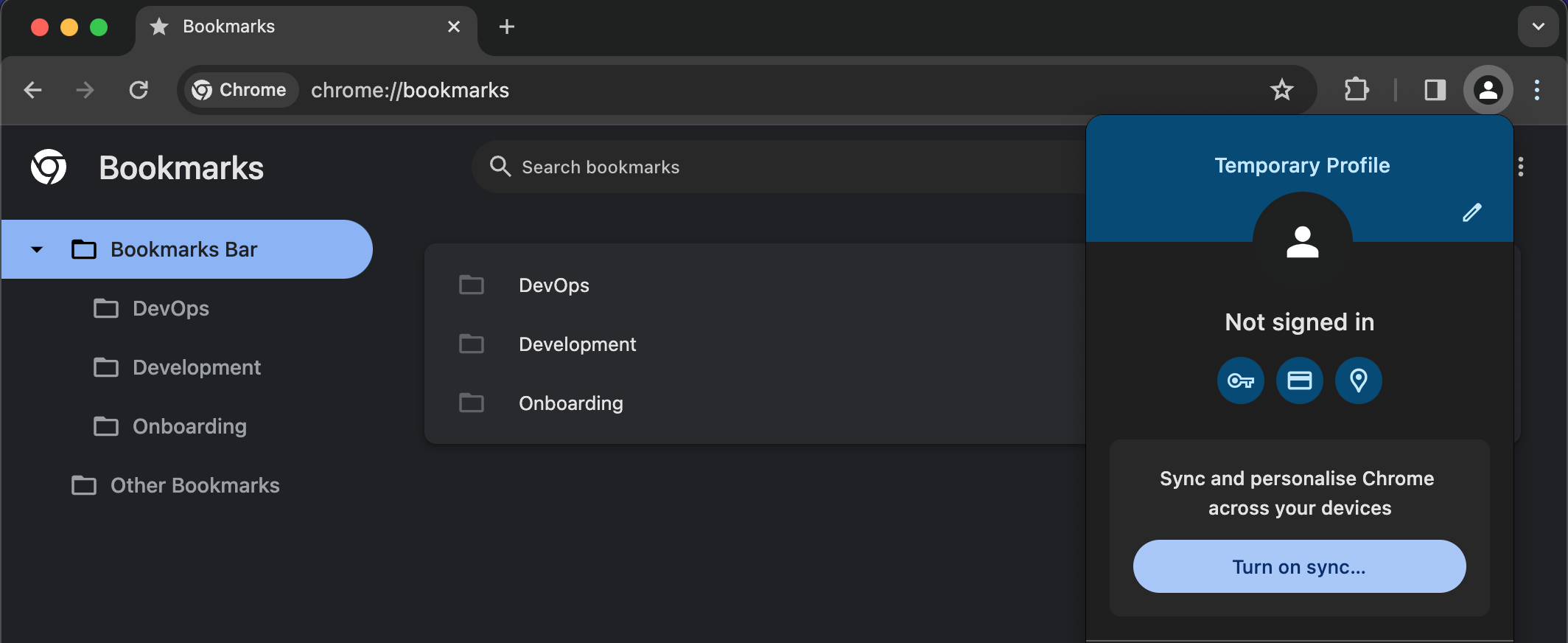
This method allows for a narrower scope of bookmark exports without modifying an HTML file. This method is quite a workaround and not a typical use-case of Chrome profiles, but it allows you to overcome all of the limitations of the previous steps without a third-party tool.
- Click your profile icon in the top right of Chrome.
- Select
+ Addfrom the profile menu list. - Select
Continue without an account. - Enter a temporary name for the profile and click
Done. - A new Chrome window will open with an entirely new profile. Open
Bookmark Managerby clicking⋮in the top right of Chrome and then selectingBookmarks and lists > Bookmark Managerfrom the dropdown (alternatively, you can use the keyboard shortcutCTRL+SHIFT+Oon Windows & Linux or⌥+⌘+Bon Mac). - Copy the bookmarks you want to export between your existing Chrome profile and the newly created one by right-clicking and selecting
Copy, and then paste it to the other profile. This will even allow you to copy entire folders and paste them on your Bookmark Manager page in your other profile. - In the newly created profile, click the
⋮in the top right of the Bookmark Manager window, selectExport Bookmarks. - Save the HTML file and send this to whomever you’d like to share your bookmarks with.
Method 4 - Full Export to HTML (Technical)
If you are looking for a way to preserve the structure of your bookmarks, this method will work for you.
Unfortunately, Chrome doesn’t support exporting a single folder. Instead, you must export all your bookmarks to an HTML file. You can then edit the export file to remove any personal bookmarks. However, this approach isn’t very accessible unless you are familiar with editing HTML files.
- Open
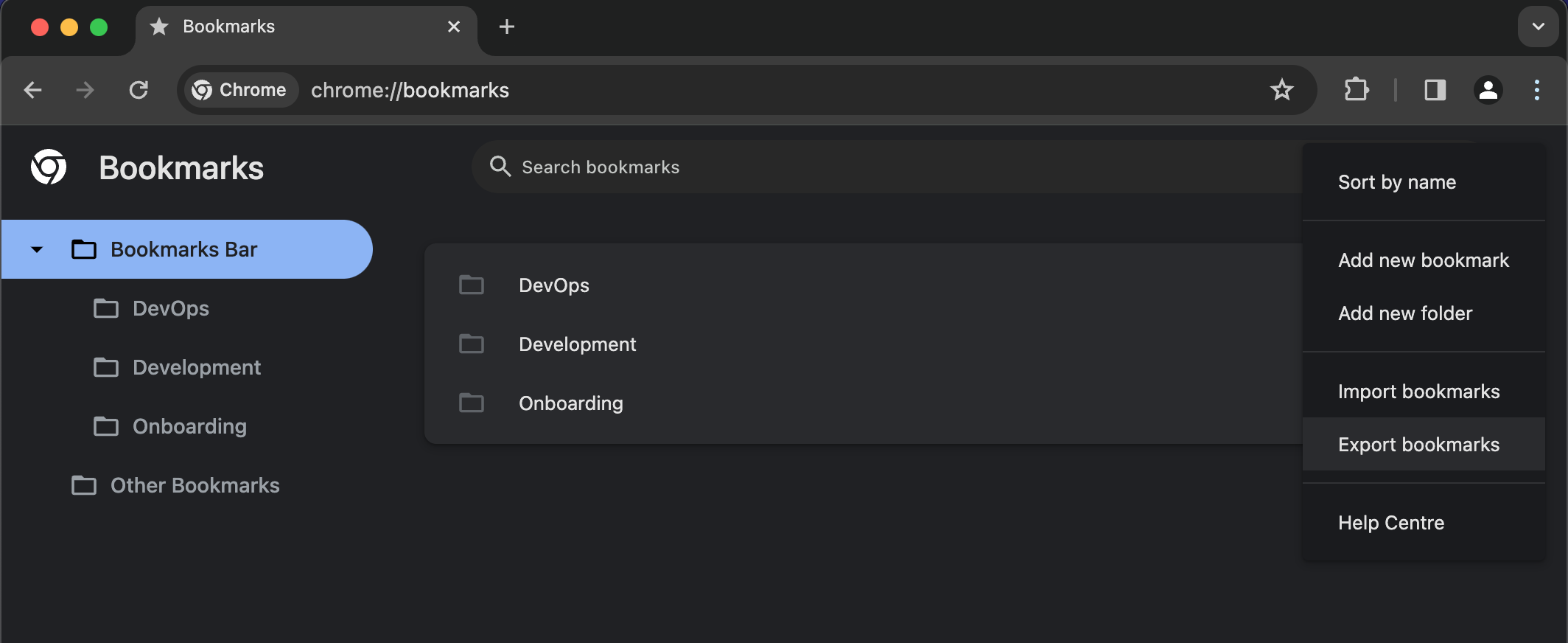
Bookmark Managerby clicking⋮at the top right of Chrome and then selectingBookmarks and lists > Bookmark Managerfrom the dropdown (alternatively, you can use the keyboard shortcutCTRL+SHIFT+Oon Windows & Linux or⌥+⌘+Bon Mac). - Click the
⋮in the top right of the Bookmark Manager window and selectExport Bookmarks. - Save the HTML file and then send this file to whomever you’d like to share your bookmarks with.
The bookmarks can then be imported by following the same steps, except you’ll need to select Import Bookmarks step 2 and import the HTML file that was sent.
FAQ
How do I copy bookmarks between Chrome profiles?
To copy bookmarks between Chrome profiles, use Method 3 below. Create a temporary Chrome profile, open Bookmark Manager in your existing profile, copy the bookmarks you want to move, then paste them into Bookmark Manager in the temporary profile.
How do I transfer Chrome bookmarks to new computer without signing in?
To transfer Chrome bookmarks to a new computer without signing in, you can employ Method 3, as explained in the blog post. Create a temporary Chrome profile on your new computer, then open the Bookmark Manager in this new profile. Copy the bookmarks you want to transfer from your existing Chrome profile and paste them into the Bookmark Manager of the temporary profile. Finally, in the new profile, click the three-dot menu in the Bookmark Manager, select "Export Bookmarks," save the HTML file, and transfer it to the new computer. By following this method you will have moved your bookmarks without the need for signing in to a Google account.
How do I email bookmarks from Chrome?
To email bookmarks from Chrome, you can use the multi-select copy-and-paste method outlined in Method 1 of the blog post. Open the Bookmark Manager in Chrome, select the bookmarks you want to share, right-click, and choose "Copy." Then, paste the bookmark URLs into your email to send them to the recipient. This straightforward approach is suitable for sharing a small number of bookmarks through email.
How do I share Chrome bookmarks with others?
To share Chrome bookmarks with others, you can copy and paste a small set of bookmarks, export your bookmarks to an HTML file, or use Bookmark Llama for a folder that stays updated. Copy and export work best for one-time sharing. Bookmark Llama is better when the same people need ongoing access to the latest version of a bookmark folder.
How do I import bookmarks from Chrome to Chrome?
To import bookmarks from one Chrome browser to another, use Method 4 below. Export the bookmarks as an HTML file, then import that file through Bookmark Manager in the other Chrome browser. If the bookmarks need to keep updating after the first import, use Bookmark Llama to sync a shared folder instead.
How do I import bookmarks to another user?
For a one-time import to another Chrome user, use Method 4: export your bookmarks as an HTML file and send it to the other person so they can import it. If the folder needs to stay updated, use Bookmark Llama instead of repeating the export and import process.
How do I share bookmarks with someone else on chrome?
To share bookmarks on Chrome, you can export your bookmarks to an HTML file and send it to another person to import. That works for a one-time share. If the bookmarks will change, Bookmark Llama lets you share a folder that updates for everyone.
How do I copy bookmarks from one google account to another?
To copy bookmarks from one Google account to another, use Method 3 with a temporary Chrome profile for a manual transfer. If you need the bookmarks to keep updating between accounts, share the folder with Bookmark Llama.
How do I import bookmarks from one google account to another?
For importing bookmarks from one Google account to another, Method 3 gives you a manual option: create a temporary Chrome profile, import the bookmarks you exported as an HTML file, then sign in with the other Google account. If the bookmarks need to stay updated, Bookmark Llama can sync a shared folder instead of repeating the export and import process.
How do I transfer bookmarks to another google account?
To transfer bookmarks to another Google account, use Method 3 below with a temporary Chrome profile. That lets you choose what to move. If you need repeated updates, use Bookmark Llama so the folder stays synced.
How do I send bookmarks to another computer?
To send bookmarks to another computer, use the Full Export to HTML method for a one-time transfer. You export an HTML file, move it to the other computer, and import it there. If the same folder needs to stay updated on multiple computers, use Bookmark Llama. If you want to avoid third-party services, the temporary Chrome profile method can also work, but it is more manual.
How do I copy bookmarks to another computer?
To copy bookmarks to another computer, use the Full Export to HTML method for a one-time copy. Export your bookmarks to an HTML file, then import the file on the new computer using Chrome's Bookmark Manager. For selective copying without ongoing updates, use the temporary Chrome profile method. For a folder that keeps updating, use Bookmark Llama.
How do I transfer chrome bookmarks to another computer?
To transfer Chrome bookmarks to another computer, use the Full Export to HTML method for a one-time transfer of all bookmarks. If you only want to move selected bookmarks, use the temporary Chrome profile method. If the bookmarks need to stay updated on both computers, use Bookmark Llama.